School year 2026–2027 requirements

iPad® 7+
Description: 1024 x 788 or higher, 32GB or higher
Operating system: iPadOS 18+
Browser: Safari 18+
PC
Description: 1.4 GHz dual core or greater, 1024 x 768 or higher, 4GB of RAM or higher
Operating system: Windows: 10+
Browser: Chrome (latest 2 versions)
Chromebook
Description: 1.4 GHz dual core or greater, 1024 x 768 or higher, 4GB of RAM or higher
Operating system: Chrome OS
Browser: Chrome (latest 2 versions)
Mac®
Description: 1.4 GHz dual core or greater, 1024 x 768 or higher, 4GB of RAM or higher
Operating system: macOS 15+
Browser: Safari 15+, Chrome (latest 2 versions)
iPadiPad Air® 4
iPad 8+
Chromebook™Acer Chromebook 314
Samsung Chromebook 4
Dell™ Chromebook 3120
HP Chromebook x360
MacMacBook Pro®
MacBook Air®
Interactive BoardA Google certified EDLA device, such as the SMART RX Series

The following devices are not supported due to known sub-optimal performance from older hardware or complicated settings:

MicrosoftSurface Tablet®

School year 2025–2026 requirements

iPad® 7+
Description: 1024 x 788 or higher, 32GB or higher
Operating system: iPadOS 17+
Browser: Safari 17+
PC
Description: 1.4 GHz dual core or greater, 1024 x 768 or higher, 4GB of RAM or higher
Operating system: Windows: 10+
Browser: Chrome (latest 2 versions)
Chromebook
Description: 1.4 GHz dual core or greater, 1024 x 768 or higher, 4GB of RAM or higher
Operating system: Chrome OS
Browser: Chrome (latest 2 versions)
Mac®
Description: 1.4 GHz dual core or greater, 1024 x 768 or higher, 4GB of RAM or higher
Operating system: macOS 14+
Browser: Safari 15+, Chrome (latest 2 versions)
iPadiPad Air® 4
iPad 8+
Chromebook™Acer Chromebook 314
Samsung Chromebook 4
Dell™ Chromebook 3120
HP Chromebook x360
MacMacBook Pro®
MacBook Air®
iMac®
Interactive BoardA Google certified EDLA device, such as the SMART RX Series

The following devices are not supported due to known sub-optimal performance from older hardware or complicated settings:

MicrosoftSurface Tablet®

We will provide active support of our applications on the following devices for the full school year listed below.

Device final support year

iPad 62024–2025
iPad Air 32025–2026
iPad 52022–2023
iPad Air 22021–2022
iPad 22018/2019
iPad 32018/2019
iPad 42018/2019

Network environment

MINIMUM

REQUIREMENTS
User devices:Connect to Amplify servers via ports 80 and 443.
Latency:No more than 165 ms during peak utilization.
Connection speed:2 mbps per device during peak usage (10 mbps recommended). Boost Reading requires a connection speed of 10 mbps per user for optimal performance.
URLs:For the complete list of URLs to allow, please visit https://amplify.com/allowlist/.

Requirements

mCLASS assessments are optimized for most touchscreen devices using Chrome™ or Safari® web browsers. The teacher-led, observational assessments are best conducted using touchscreen but will function using a laptop and mouse as well. Please check our device support lifecycles and purchase recommendations lists below prior to purchasing.

Boost Close Reading is currently not supported on iPads.

Due to its smaller screen, the iPad Mini is not supported.

Amplify curriculum applications require the ability to project from the teacher’s device.

Boost Reading Benchmark uses speech recognition software to analyze students’ oral reading. For the most accurate results, use a wired dual-ear headset with a boom microphone that extends in front of the student’s mouth. Avoid headsets with active noise cancellation (ANC) unless that feature can be disabled. Bluetooth headsets are currently incompatible with our speech recognition technology and should not be used.

iPhone 13 and later running iOS 17+ and Safari
Galaxy 11 and later running Android 15+ and Chrome

Oregon Enhanced ELA State Review for K–5

To view this protected page, enter the password below:


Oregon ELA State Review for 6–8

To view this protected page, enter the password below:


Oregon Math State Review for 9–12

To view this protected page, enter the password below:


Oregon Math State Review for 6–8

To view this protected page, enter the password below:


Oregon ELA Review for Elementary (K–5)

To view this protected page, enter the password below:


What’s new

The Tech User Manual has been updated for EOY.

About mCLASS in Louisiana

The Louisiana Department of Education is committed to providing literacy instruction for all by:

  • Aligning core curriculum, instruction, and assessments with the Science of Reading.
  • Providing appropriate literacy interventions to address difficulty with reading development.
  • Implementing practices based on the Science of Reading in every classroom, every day.
  • Offering aligned resources to parents, guardians, and family members.

Built on decades of research at the Center on Teaching and Learning at the University of Oregon (a national center for early childhood assessment and instruction), the mCLASS suite meets Louisiana’s early literacy goals for its students with a robust core curriculum and a suite of reporting, grouping, lesson, and caregiver support features.

DIBELS measures at each grade level 
Measure Grade K Grade 1 Grade 2 Grade 3
Letter naming fluency A large, light peach-colored checkmark on a transparent background. A large, light peach-colored checkmark on a transparent background.    
Phonemic segmentation fluency A large, light peach-colored checkmark on a transparent background. A large, light peach-colored checkmark on a transparent background.    
Nonsense word fluency A large, light peach-colored checkmark on a transparent background. A large, light peach-colored checkmark on a transparent background. A large, light peach-colored checkmark on a transparent background. A large, light peach-colored checkmark on a transparent background.
Word reading fluency A large, light peach-colored checkmark on a transparent background. A large, light peach-colored checkmark on a transparent background. A large, light peach-colored checkmark on a transparent background. A large, light peach-colored checkmark on a transparent background.
Oral reading fluency   A large, light peach-colored checkmark on a transparent background. A large, light peach-colored checkmark on a transparent background. A large, light peach-colored checkmark on a transparent background.
Maze (basic comprehension)     A large, light peach-colored checkmark on a transparent background. A large, light peach-colored checkmark on a transparent background.

Enrollment resources

EOY enrollment timeline: 

  • 3/3- 3/17: Admin Portal closed 
    • Students and staff are still able to log into mCLASS
    • Students are still able to assess Progress Monitoring
    • No EOY assessments taking place at this time 
    • Data Reporting (classroom and aggregate reports) is still available
  • 3/18: Admin Portal reopens 
  • 4/1: EOY begins

Student Transfers:

For instructions on transferring students into a district from a different district within the state, see the Transferring Students section of the Test Coordinator Manual: K–3 EOY.

To add students to your district who are transferring to your school from outside of LDOE, please follow the process in the Enrolling Students section of this article.

End of Year and G3 Summer window resources

  • Test Coordinator Manual (District and School Test Coordinators only): This manual provides instructions for administrative tasks for DTCs and STCs.
  • Test Administrator Manual for the Secure K–2 End of Year Literacy Assessment: This manual for Test Administrators provides instructions for administering the secure EOY assessment.
  • Test Administration Manual: Grade 3 End of Year Literacy Assessment:  This manual for Test Administrators provides instructions for administering EOY assessment to Grade 3 students.
  • Tech User Guide: This manual for District and School Technology Coordinators provides instructions for installing the safe browser (Windows/Mac) or kiosk mode applications (Chromebook) needed for secure EOY assessment.
  • Accessibility and Accommodations Manual: This manual includes information about the accessibility features offered for secure EOY assessment, as well as the standard DIBELS 8th Edition Accommodations.
  • For information about student demographics in the Admin Portal, see LDOE Admin Portal: Demographics.
  • New Troubleshooting for ChromeOS Kiosk Mode guide is available for Technology Coordinators supporting Test Administrators who encounter an error message when launching the Chrome kiosk mode applications.

How to: Install the Safe Exam Browser

This section provides instructions for installing the Safe Exam Browser (SEB), which is needed to assess K-2 students during EOY in Louisiana. Depending on your device type, download the SEB app from the Apple App Store or this site.

If you are using a Chromebook, you will use kiosk mode instead of the SEB. The Tech User Guide includes instructions for installing the applications needed to use kiosk mode, as well as instructions for installing the SEB and additional information to set up devices for secure End of Year (EOY) assessment.

Windows

Browser: Chrome (latest 2 versions)

iPad

  • Navigate to Safe Exam Browser in the App Store on your iPad.
  • Tap the Safe Exam Browser app icon to open the app page.
  • Tap Get to download and install the app.
  • For instructions on installing the SEB, see the Tech User Manual.

macOS

  • Download the DMG file.
  • Depending on your browser, a download page may open in a new tab, displaying the download progress. When the download is complete, close the tab. 
  • For instructions on installing the SEB, see the Tech User Manual.

Progress Monitoring

This guide provides instructions for administering progress monitoring (PM) assessments in Louisiana schools. 

Please note that the steps for accessing and administering PM assessments are different for schools with an mCLASS Intervention license than for schools that do not have an mCLASS Intervention license.

Amplify Tutoring: HDT driven by mCLASS data

An adult and child sit at a table, smiling and giving each other a high five. The child wears blue headphones and a laptop is on the table. The background is light blue.

Grounded in evidence-based practices and taught by caring, consistent tutors, our high-impact tutoring programs use high-quality instructional materials and data-driven mCLASS® products to empower students.

  • Data-driven, personalized instruction
  • Research-backed solutions tailored to support your MTSS framework
  • Customizable–before, during or after school year-long, semester-long and summer programming
  • Comprehensive program management and staffing support

Professional development

Amplify professional development (PD) provides learning experiences that intentionally develop the knowledge and skills you need for effective and self-sustaining implementation.

Go to the PD Library to access self-paced online courses, webinar recordings, videos, and more to help you learn how to administer and score the assessment and develop a deeper understanding of reporting and instruction.

If you are interested in purchasing additional PD for your school or district, please reach out to your account executive.

Additional mCLASS information

mCLASS gives you instant results and clear next steps for each student. Quick and actionable reports provide detailed insight into students’ reading development across foundational literacy skills for teachers, specialists, administrators, and caregivers.

View the EOY mCLASS Reporting Guide to learn more.

View the BOY/MOY mCLASS Reporting Guide to learn more.

Additional resources around mCLASS reporting can be found by navigating to the Programs & Apps section and then selecting PD Library

Graph showing emma ashley's progress in letter sounds from august to may, starting well below benchmark at 20, reaching 74 by december, and surpassing the benchmark with 90 in may.

To continue your own professional learning around the Science of Reading, join your colleagues who’ve subscribed to our podcasts and communities!

Science of Reading: The Podcast delivers the latest insights from researchers and practitioners in early reading. Further your professional development with each episode by subscribing and downloading now.

Science of Reading: The Community is built for those committed to fostering conversation around the Science of Reading and implementing best practices in the classroom (including the virtual classroom).

What does classroom instruction look like when it is based on Science of Reading practices? We’ve outlined a Science of Reading action plan to guide your evaluation in our new FREE ebook, Science of Reading: Making the shift.

A presentation slide titled "Science of Reading: Making the shift" with subtitle "Surveying classroom instruction" and colorful ribbon graphics.

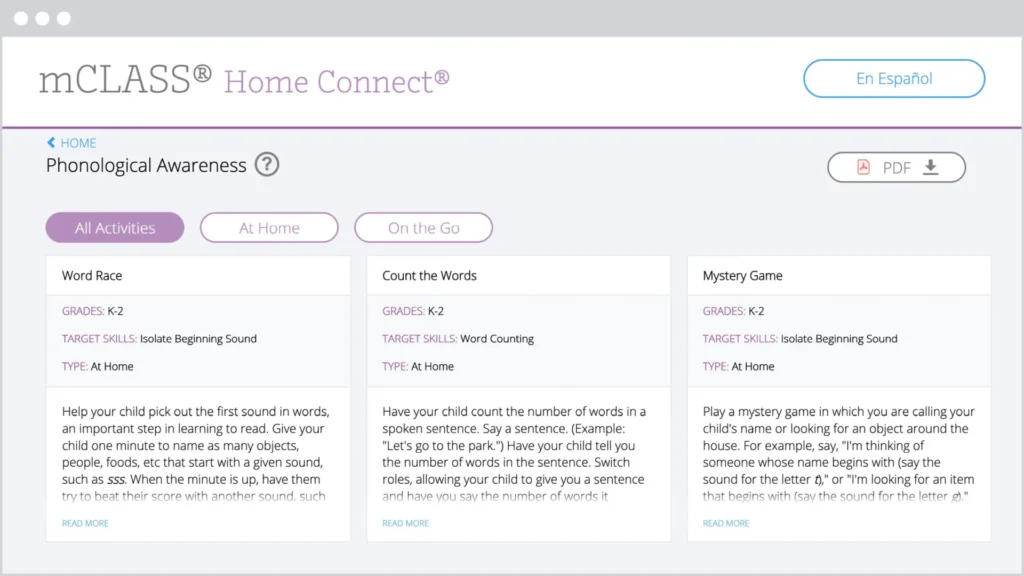
The mCLASS Home Connect website houses literacy resources for parents and caregivers, including at-home lessons organized by skill to help students at home during remote learning. Our mCLASS parent/caregiver letters in English and Spanish ensure that families know how to best support their students.

Screenshot of the mclass home connect website showing educational activities in three categories: word race, count the ways, and mystery game, with navigation options at the top.

mCLASS support

Our chat agents are standing by to assist you!
Simply log in at my.amplify.com/login/louisiana and select the orange button in the lower right corner to chat live with our support team.

Important note:
Our support hours are Monday through Friday, 7 a.m. to 6 p.m. CT.

Check out the DIBELS 8 LDOE Help Center for more help at any point during implementation.

A laptop screen displaying the AmplifyELA program with sections for different grade levels and core units, featuring colorful icons and a menu on the left side.

Additional Amplify products

Get in touch with us to learn more about bringing other high-quality Amplify programs to your school or district.

Program overview

Boost Math is a personalized learning math instruction and practice program. The game-based experience engages all students in grade-level mathematics in ways that prepare them for success in, and build enthusiasm around, algebra and later math.

Student experience

When students click on their Curioso icon, they are taken into their quest. Quests consist of brief narrative scenes, punctuated with skill practice in the form of games. Once a student completes a scene, their very own collection of personalized skill games appears on the right side of the screen. Students can play these games in any order.

  • Students in grades 1 and 2 will experience games related to comparing numbers, measuring, and more.
  • Students in grades 3, 4, and 5 will experience games related to fractions, area, multiplication, and more.
  • Students will also experience activities known as “Makers,” which are open-ended activities within each quest related to the quest narrative, giving students an opportunity to apply different math applications to the real world.

Note: This is an early subsection of the product. Some content may be appropriate for some students, but difficult for others. This is feedback we want to hear. The designs are also still in-progress, with many aspects yet to be featured. We welcome all suggestions!

Implementation guidelines

We recommend that students should play for a total of 60 minutes per week, broken up into 3–4, 15–20 minute sessions. Consider using Boost Math during the following times:

  • Small group or centers time
  • Choice time
  • During intervention blocks
  • After school
  • At home
  • Remote learning

Getting your students online

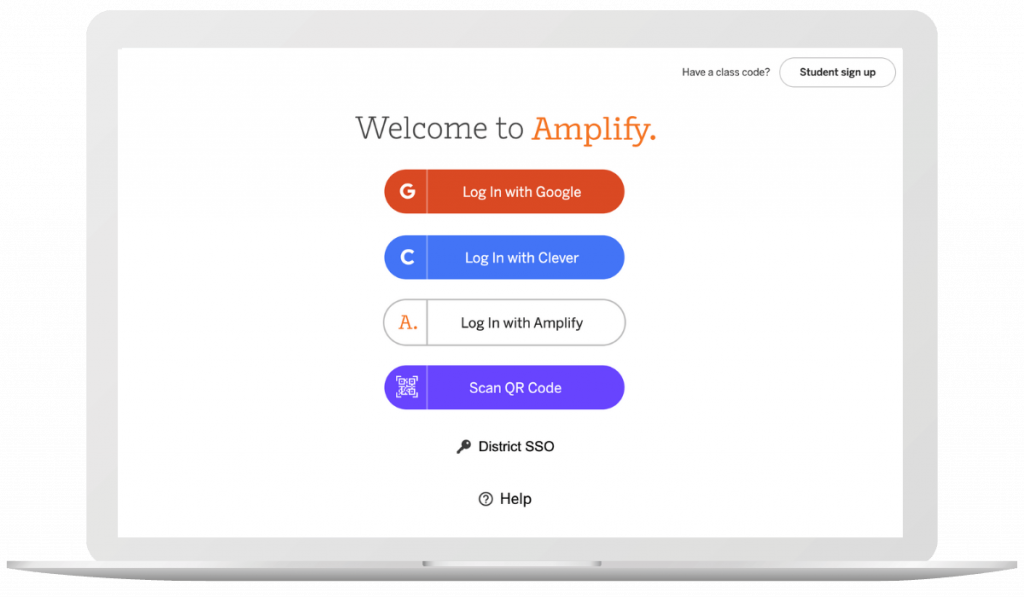
Instruct students to navigate to learning.amplify.com, and log in using the method you typically use when logging into Amplify Reading.

Find and click on the icon for Boost Math, as shown above.

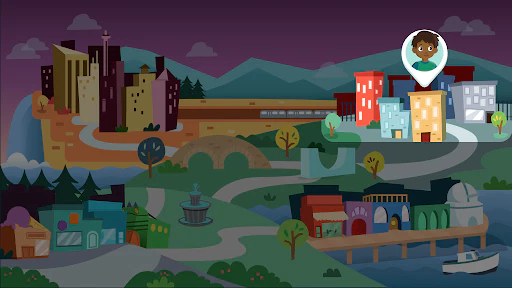
Students will then see the screen showing Sequence Falls, the location in which their Boost Math journey takes place.

Troubleshooting guide

To clear your Chrome browser cache/cookies:

  • On your computer, open Chrome.
  • At the top right, click the three vertical dots.
  • Click More Tools, Clear browsing data.
  • At the top, choose a time range, select All time.
  • Check the boxes next to “Cookies and other site data” and “Cached images and files.”
  • Click Clear data.
  • From the Safari menu at the top of the screen, select “Safari”
  • Select “Preferences” from the drop-down menu
  • Open the “Privacy” tab
  • Select the “Manage Website Data” button
  • Choose “amplify.com” from the list of sites
  • Select the “Remove” button
  • Select “Done”, then close the window

Please check to ensure “cookies” are accepted on your device.

If you still receive an error message or blank screen when accessing an Amplify page, please email Aya Bukres.

Please email Jehan Miah to confirm your login credentials.

To reset your Amplify password: click Login with Amplify, then click the Forgot Password link. If you do not receive an email with password reset instructions, please check your Spam folder. To ensure messages to not go to your Spam inbox, make sure to include the following addresses as trusted sources:

  • do-not-reply@amplify.com
  • noreply@amplify.com
  • noreply@welcome.amplify.com

Welcome to Boost Reading: Remote Learning Edition!

Amplify is committed to helping school and district partners make instructional resources like Boost Reading: Remote Edition available to students who may be unable to attend school. 

This site contains all the resources you’ll need to get started using Boost Reading: Remote Edition with your students as soon as possible. We’re confident that as a community, we can continue to support learning to read remotely.

Are you an mCLASS® user? Click here to get started.

Colorful cartoon animals and objects surround a circular portal with a purple glowing ring, featuring silhouetted figures in its center.

Getting started

What you need to know about Boost Reading

Boost Reading is a student-driven, digital literacy program that provides students with differentiated and adaptive practice in all key areas of literacy instruction. Teachers have access to rich data insights into student usage and progress they can use to inform remote instruction.


How does it work with other programs?

Boost Reading is a great complement to any core or assessment program, especially Amplify Core Knowledge Language Arts (CKLA) and mCLASS.


When and how to use Boost Reading

We recommend students use the program independently for 30-45 minutes a week. This implementation model has led to student growth, especially for dual language learners.


Students will need access to one of the following devices: Windows Devices with Windows 7+, Chromebooks with Chrome OS, and Mac devices with OS 10.11+ or iOS 11+.


How do I get started with Amplify Reading?

Good news! Amplify Reading has already been enabled within your mCLASS and Acadience Reading accounts. To get started with the program, you’ve got only two steps left: creating your class code and setting up your devices.


  • [Video] How to access Amplify Reading from within mCLASS and Acadience Reading
  • [Video] How to enable class login
  • [Video] How to create shortcuts on devices
  • [PDF] Amplify Reading launch packet


Note: Amplify Reading works on most classroom devices, including Windows Devices with Windows 7+, Chromebooks with Chrome OS, and Mac devices with OS 10.11+ or iOS 11+.
What else can you tell me about Amplify Reading?

As students engage in skill practice, their paths through the game world adapt to meet their unique learning needs. Amplify Reading includes more than 40 standards-aligned games that build language, foundational skills, and comprehension skills, while also developing:

  • Phonological awareness
  • Phonics
  • Vocabulary
  • Text analysis
  • Comprehension
  • Microcomprehension (i.e., the smaller aspects of comprehension that make up the reader’s mental model of a text)


Some additional resources that you might find helpful:


How do I get started with Boost Reading?

Good news! You and your students now have access to Boost Reading. To get started, you’ll need to sign in with your Amplify credentials at mclass.devamplify.wpengine.com. Next, you’ll want to distribute Boost Reading credentials to your students.


Where do I find my credentials?

You should have received an email from noreply@devamplify.wpengine.com with your new account information. If you do not see it in your inbox, please check your spam folder.


How to download and distribute student credentials:


How to support login at home:

You can direct parents to the following videos for an overview of the program and how to get started.


After students start playing, you can check in on their progress via your teacher dashboard. 


Printable extension activities

Consider sending the following activities home with your students as part of their weekly Boost Reading routine. Each printable activity has instructions in both English and Spanish.

Packet 1

Access support

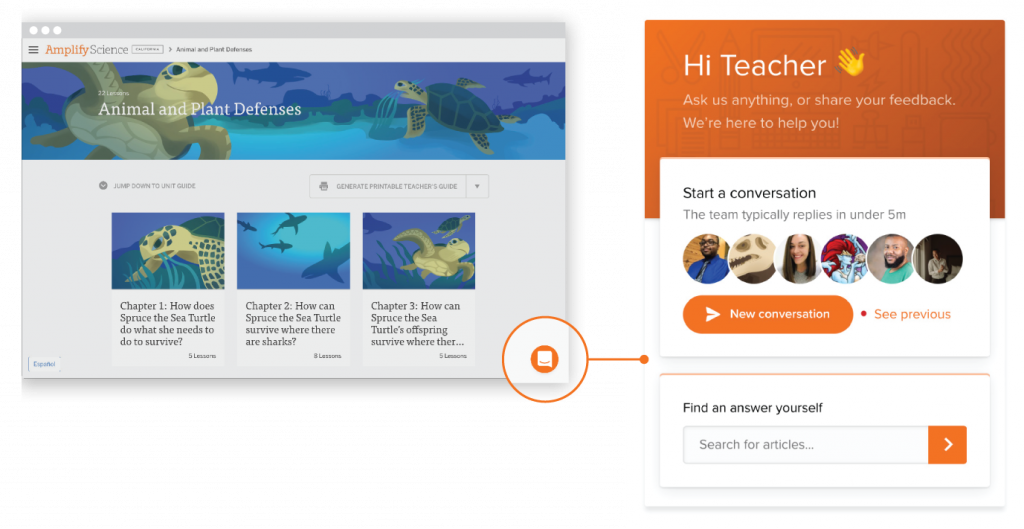
Intercom chat

Our Intercom feature gives you the ability to chat with customer support, technical support, and pedagogical support teams in real time directly from the digital platform. This ensures that issues that arise in the classroom can be addressed as quickly as possible. Support teams can be reached from 7 a.m. to 7 p.m. EDT, Monday through Friday.

Email

Our customer support, technical support, and pedagogical support teams can be reached by email at help@devamplify.wpengine.com from 7 a.m. to 7 p.m. EDT, Monday through Friday.

Welcome, LAUSD educators!

Introducing Amplify Desmos Math California, a curiosity-driven TK–12 program that builds lifelong math proficiency. Each lesson poses problems that invite a variety of approaches before guiding students to synthesize their understanding of the learning goals. Students encounter math problems they’re eager to solve, while teachers spend more time where it’s most impactful—creating a collaborative classroom of learners.

Start by watching our welcome video to the right, then learn more about the program and begin your review below.

Curriculum overview

Watch the videos below for an overview of Amplify Desmos Math California:

Built for California

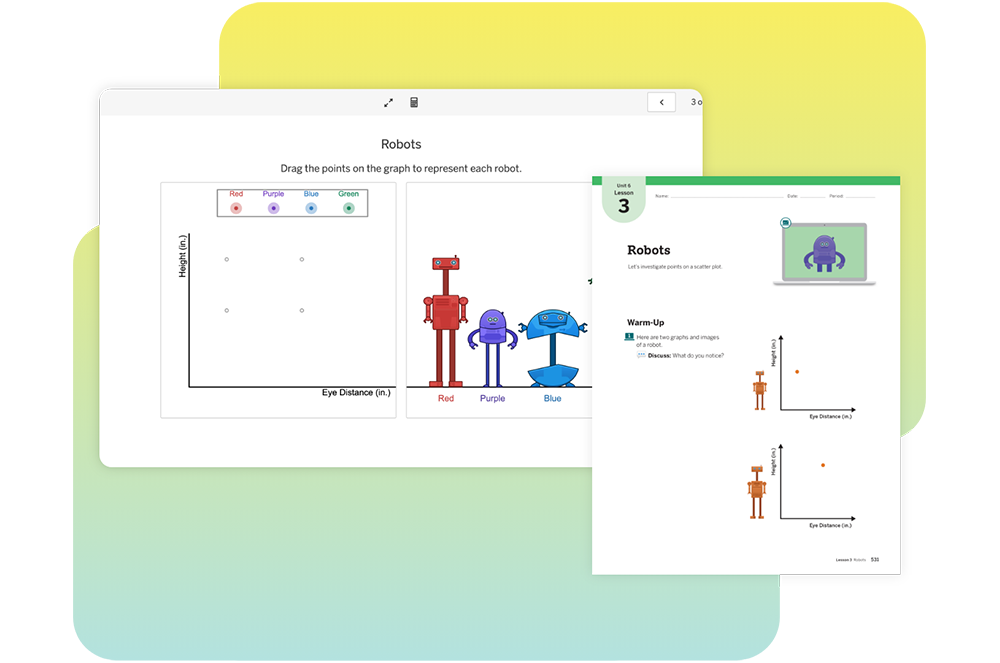
An educational worksheet on robots, featuring a graph with red, purple, and blue robot icons, and instructions for a warm-up activity.

The Amplify Desmos Math California program is designed around the vision articulated in the Mathematics Framework for California Public Schools: Kindergarten Through Grade Twelve to enable all California students to become powerful users of mathematics. Our program incorporates the latest research in student learning, meaning that we:

  • Focus on the Big Ideas: Amplify Desmos Math California’s courses, units, and lessons are centered around the Big Ideas. Big Ideas, like standards, are not considered in isolation. In addition to each unit and lesson’s focal Big Ideas, Amplify Desmos Math California also provides connections among the Big Ideas across units and lessons.
  • Center on open and engaging tasks: Amplify Desmos Math California is grounded in engaging tasks meant to address students’ often-asked question: “Why am I learning this?”  Students are invited into learning with low-floor, high-ceiling tasks that provide an entry point for all. Open tasks in Amplify Desmos Math California provide the space for students to try on multiple strategies and represent their thinking in different ways, and allow student explanation and discussion to serve as the center of the classroom. All lessons offer both print and digital representations.
  • Provide enhanced digital experiences: Amplify Desmos Math California includes digitally-enhanced lesson activities, incorporating interactive digital tools alongside print materials. These purposefully-placed resources allow students to visualize mathematical concepts, receive actionable feedback while practicing, encounter personalized learning support from an onscreen tutor, and engage in discussions about their thinking and approaches.
  • Treat core instruction and differentiation as integral partners: The Amplify Desmos Math California curriculum provides teachers with lessons, strategies, and resources to eliminate barriers and increase access to grade-level content without reducing the mathematical demand of tasks. Every activity has multiple entry points to ensure that all students are supported and challenged. Intervention and personalized learning activities are directly connected to lesson content and offer students individualized support as they dive into the mathematics.

About the program

Taking the IM content further.

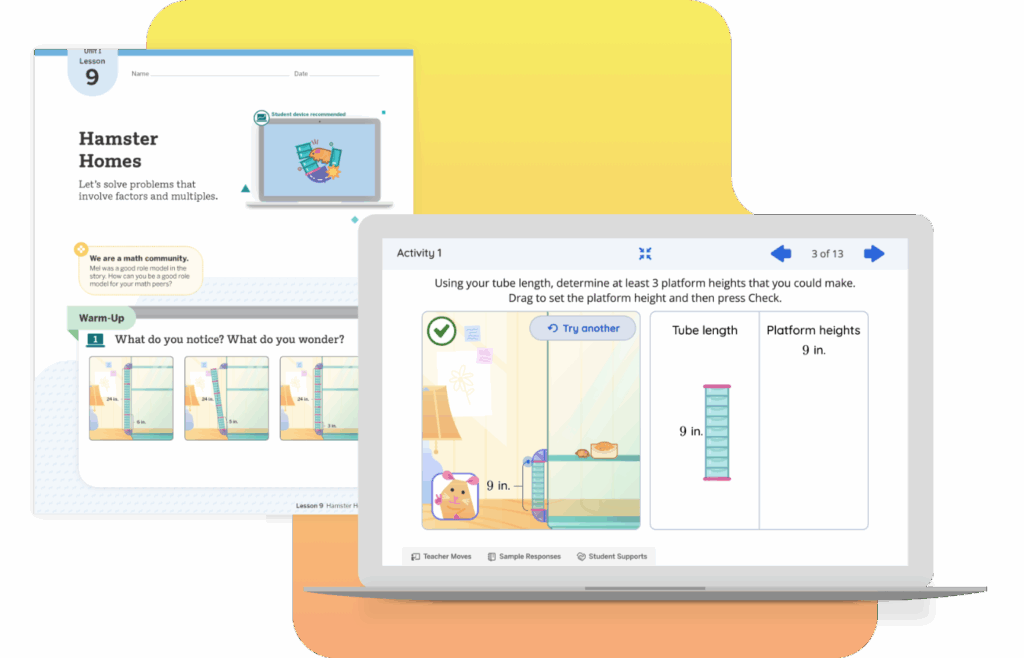
A laptop displays a math activity about platform heights and tube length, while a worksheet titled "Hamster Homes" is visible in the background.

Amplify Desmos Math California is a curiosity-driven program that builds lifelong math proficiency. Each lesson poses problems that invite a variety of approaches before guiding students to connect their understanding of the learning goals.

Students encounter math problems they’re eager to solve, while teachers spend more time where it’s most impactful: creating a collaborative classroom of learners.

We chose to base our program on the extensively field-tested IM K–12 MathTM authored by Illustrative Mathematics. IM K–12 Math is a problem-based curriculum. It asks students to grapple with well-designed and thoughtfully sequenced real-world mathematical problems to build their understanding of how to efficiently solve them.

Begin your review to see how we’ve taken the IM K–12 Math content further.

Begin your review

Using a Google Chrome or Safari web browser, click the orange button below or navigate to learning.amplify.com and select “Log in with Amplify.” Please note, these demo accounts expire on April 04, 2026.

K–8 English credentials

  • Username: t1.lausd_adm_k8@demo.tryamplify.net
  • Password: Amplify1-lausd_adm_k8

K–8 Spanish credentials

  • Username: t1.lausd_k8_spanish@demo.tryamplify.net
  • Password: Amplify1-lausd_k8_spanish

AGA credentials

  • Username: t1.lausd_aga@demo.tryamplify.net
  • Password: Amplify1-lausd_aga

Welcome, LAUSD educators!

Introducing Amplify Desmos Math California, a curiosity-driven TK–12 program that builds lifelong math proficiency.

Our program fully aligns with LAUSD’s screen-time resolution. We are 100% print-based, with optional
technology resources available, in direct accordance with the school board’s newly approved guidelines.

Start by watching our welcome video to the right, then learn more about the program and begin your review below.

Curriculum overview

Watch the videos below for an overview of Amplify Desmos Math California:

Built for California

An educational worksheet on robots, featuring a graph with red, purple, and blue robot icons, and instructions for a warm-up activity.

The Amplify Desmos Math California program is designed around the vision articulated in the Mathematics Framework for California Public Schools: Kindergarten Through Grade Twelve to enable all California students to become powerful users of mathematics. Our program incorporates the latest research in student learning, meaning that we:

  • Focus on the Big Ideas: Amplify Desmos Math California’s courses, units, and lessons are centered around the Big Ideas. Big Ideas, like standards, are not considered in isolation. In addition to each unit and lesson’s focal Big Ideas, Amplify Desmos Math California also provides connections among the Big Ideas across units and lessons.
  • Center on open and engaging tasks: Amplify Desmos Math California is grounded in engaging tasks meant to address students’ often-asked question: “Why am I learning this?”  Students are invited into learning with low-floor, high-ceiling tasks that provide an entry point for all. Open tasks in Amplify Desmos Math California provide the space for students to try on multiple strategies and represent their thinking in different ways, and allow student explanation and discussion to serve as the center of the classroom. All lessons offer both print and digital representations.
  • Provide enhanced digital experiences: Amplify Desmos Math California includes digitally-enhanced lesson activities, incorporating interactive digital tools alongside print materials. These purposefully-placed resources allow students to visualize mathematical concepts, receive actionable feedback while practicing, encounter personalized learning support from an onscreen tutor, and engage in discussions about their thinking and approaches.
  • Treat core instruction and differentiation as integral partners: The Amplify Desmos Math California curriculum provides teachers with lessons, strategies, and resources to eliminate barriers and increase access to grade-level content without reducing the mathematical demand of tasks. Every activity has multiple entry points to ensure that all students are supported and challenged. Intervention and personalized learning activities are directly connected to lesson content and offer students individualized support as they dive into the mathematics.

About the program

Taking the IM content further.

A laptop displays a math activity about platform heights and tube length, while a worksheet titled "Hamster Homes" is visible in the background.

Amplify Desmos Math California is a curiosity-driven program that builds lifelong math proficiency. Each lesson poses problems that invite a variety of approaches before guiding students to connect their understanding of the learning goals.

Students encounter math problems they’re eager to solve, while teachers spend more time where it’s most impactful: creating a collaborative classroom of learners.

We chose to base our program on the extensively field-tested IM K–12 MathTM authored by Illustrative Mathematics. IM K–12 Math is a problem-based curriculum. It asks students to grapple with well-designed and thoughtfully sequenced real-world mathematical problems to build their understanding of how to efficiently solve them.

Begin your review to see how we’ve taken the IM K–12 Math content further.

Begin your review

Using a Google Chrome or Safari web browser, click the orange button below or navigate to learning.amplify.com and select “Log in with Amplify.”

English credentials

Spanish credentials

Program introduction

Professional learning

What will you find in the Professional Learning section?

Whether you’re launching into a new program or looking to strengthen your skills, Amplify’s professional learning sessions will support your needs.

  • Register now to join new and upcoming learning sessions.
  • On-demand sessions offer timely insights to support your mCLASS implementation.
  • Webinar recordings from 2020-2021 or 2021-2022 ensure you don’t miss a thing.

Amplify is working in partnership with the Kindergarten Assessment Support (KAS) Initiative to provide virtual professional development trainings to teacher, specialists, and campus/district leader users of mCLASS Texas Kindergarten across the state of Texas. These trainings are funded by the KAS Grant and will be provided at no charge to participants. Please note that all content will be focused on kindergarten only.

You will find a list of sessions below that you can register for. Sessions will be updated on an ongoing basis. To register, educators can enter the Session ID number into the Region 4 ESC search bar (https://www.escweb.net/tx_esc_04/) to sign up for the session(s) and to secure a spot or type ‘mclass’ into the search bar; all virtual sessions are capped at 30 participants.

For more information about the KAS Initiative, please visit https://tea.texas.gov/academics/early-childhood-education/data-driven-instruction-best-practices.

All mCLASS Texas Edition users will have access to free online modules. Contact your district for details about accessing these modules.

For those districts that want to support teachers in a more comprehensive approach we will work to ensure that the professional learning section supporting each mCLASS Texas Edition rollout meets each district’s unique needs. Here is a professional learning catalog to show the breadth and depth of what we offer.

Remote assessment

mCLASS Texas Edition can be administered in many ways, including remotely. This site will give guidance on the various ways to administer mCLASS Texas Edition to best support your students in any learning environment.

Watch the Remote Assessment Guidance Office Hours recording here.
Documents referenced during Office Hours are linked below.

Administrators, welcome to mCLASS Texas Edition!

Here you’ll find information about enrollment and licensing, technical requirements, professional learning resources, and more.

Onboarding: What to expect

Welcome to mCLASS Texas Edition! To help you know what’s coming next, we created the following visual that outlines the steps of the onboarding process. You can use it as a reference.

Illustration depicting a step-by-step process for professional learning and enrollment, featuring icons for requests, calls, enrollment, emails, online modules, and classroom applications.

Enrollment and licensing

Amplify provides services to fit the different types of enrollment needs for various times of year:

  •  Self-Service Enrollment (SSE) is a batch enrollment tool that you can use to import large amounts of student, staff, and class information into the Amplify system at the beginning of the school year or any time you need to update your enrollment data.
  • Auto Self-Service Enrollment (Auto SSE) is a service for automatically sending enrollment data from your computer to Amplify, which does not require intervention after you initiate the process, and which can be run at any time of year. You must have the ability to run scripts in order to use Auto SSE.
  • Amplify also offers the Manual Enrollment tools on the Amplify Administration page, which you can use at any time of year to add or update enrollment information by entering the information directly into Amplify, rather than uploading spreadsheets.

Preparing your materials

Click here to access a list of the print materials included in each mCLASS Texas Edition kit.

Image of a promotional flyer for mclass® texas, detailing educational materials for teaching literacy to students from kindergarten through 6th grade, with various text sections and an image of a child studying.

Technology requirements and guidelines

To ensure that your hardware and network meet the minimum technical requirements for optimal performance and support of your digital curriculum products, please see Amplify’s customer requirements page.

To ensure access to mCLASS, add the URLs on this page to your corresponding district or school-level filters.

Teachers, welcome to mCLASS Texas Edition!

Here you’ll learn about the program, how to set up your device, and how to get help when using mCLASS Texas Edition.

Onboarding: What to expect

A step-by-step guide for mCLASS preparation: review launch email, watch training module, log in to mCLASS, set up assessment device, prepare to teach mCLASS in the classroom.

Logging in to mCLASS Home

mCLASS Home is where you access mCLASS reporting, instruction, and other helpful resources. Follow these steps to log in:
1. Navigate to mclass.amplify.com.
2. You will need your Amplify user name and password to log in. If you forget your password, you can follow the instructions below to generate a new one.

  • Click “Forgot Password”
  • Enter your Amplify username and your district or school email address. Click Send. Then follow the instructions in the email you receive to reset your password.

If you have not received an Amplify username and password, please contact your
school or district administrator.

Setting up your assessment device

Assessments are administered using the mCLASS app. The mCLASS app is installed by creating a shortcut from Chrome™ (Safari for iPads) on your device’s desktop or home screen. Click the link for your device for installation instructions:
iPad
Chromebook
Windows device

Note that you need your Amplify username and password to install the mCLASS app. If you have not received it, please contact your school or district administrator.

Dyslexia screening

mCLASS® Texas DIBELS® 8 and IDEL assess the updated skills required for dyslexia screening. We’ve got you covered!

Click here to learn more about the Texas Dyslexia handbook updates.

Looking for help?

Our technical and pedagogical support teams are available from 7 a.m. to 7 p.m. ET, Monday through Friday.

For your most urgent questions

  • Use our live chat within your program
  • Call our toll-free number: (800) 823-1969

For less urgent questions, send us an email!

Frequently asked questions

The following FAQ contains the answers to some of the most common questions that we receive from pilot teachers like you.

Still have questions? Your dedicated pilot support coordinator would be happy to help. His or her contact information can be found in the pilot support brochure you received during your pilot implementation training. If you prefer, request that your pilot support coordinator gets in touch with you by completing this form.

A teacher discusses educational content in front of a whiteboard while students in the classroom raise their hands eagerly.

Program questions

It’s true. Our teacher’s guide does not look like the typical guide that comes with a traditional textbook. Here’s why: we aren’t a traditional textbook program. Rather, we’re a next generation curriculum designed to support a shift to a whole new way of teaching science.

With this shift, your district will be faced with supporting a wide-variety of needs from a wide-variety of teachers. For that reason, the resources required to successfully implement a new program will vary considerably from teacher to teacher. That’s precisely why our Teacher’s Reference Guide is chock full of so many rich and varied resources. From scientific background knowledge to suggested teacher talk, standards maps to materials lists, and lesson preparation notes and classroom management tips to strategies for differentiating instruction, this guide is truly meant to serve as an instructional reference.

For everyday instructional use, we recommend that busy classroom teachers use Classroom Slides, which are now available for most K–5 units and will be coming soon for grades 6–8.

Also known as our hands-free TG, Classroom Slides are a brand-new teaching resource that makes delivering daily instruction easy and fun. With a fully customizable PPT available for every lesson of the program, teachers can put down the Teacher’s Guide and focus on what matters most—their students.

Classroom Slides are:

  • Available offline, which means no more sweating unreliable internet connections.
  • Streamlined for easy lesson delivery, including lesson visuals, activity instructions and transitions, animations, investigation setup videos, technology support, and more.
  • Fully editable, allowing teachers to incorporate their own flavor, flair, and favorite resources.

Our development team is working as quickly as possible to make Classroom Slides available to all teachers. That said, at this time they are only available for the first and second units of each grade K–5, with the remaining units being released over the next few months. Due to the popularity of Classroom Slides at the elementary level, development for grades 6–8 is now underway, with all units scheduled for completion by the 2020-2021 school year.

Not to worry. Amplify Science California was developed with plenty of wiggle room built right into the program. This means that you can relax knowing that there’s ample time to get it all done.
 
Most curricula provide 180 days of lessons despite knowing that the typical classroom can’t possibly complete everything in a given school year. Rather than asking you to wade through unnecessary content, we designed a program that addresses 100 percent of the California NGSS in just 66 days at grades K–2 and 88 days at grades 3–5, and 146 days at grades 6–8.

While we took great care in ensuring cohesiveness across units and grade levels, we also know that the ability level of your students changes from year to year. As a result, you need a program that provides adaptable and flexible pacing, and that empowers you to make instructional decisions in the moment.

As you evaluate how well Amplify Science California can accommodate your pacing needs, consider the following:

Progress Builds: Our Progress Builds describe the way in which students’ understanding of the central phenomenon should develop and deepen over the course of a unit. Each Progress Build defines several levels of understanding, with each level integrating and building upon the knowledge and skills from lower levels. Because these Progress Builds are directly tied to the program’s system of assessments, teachers are armed with the data they need to make informed decisions about when to move on, when to slow down, and when to revisit a concept and dive deeper.

A chart titled Animal and Plant Defenses Progress Build outlines three levels of understanding about survival strategies in animals and plants.

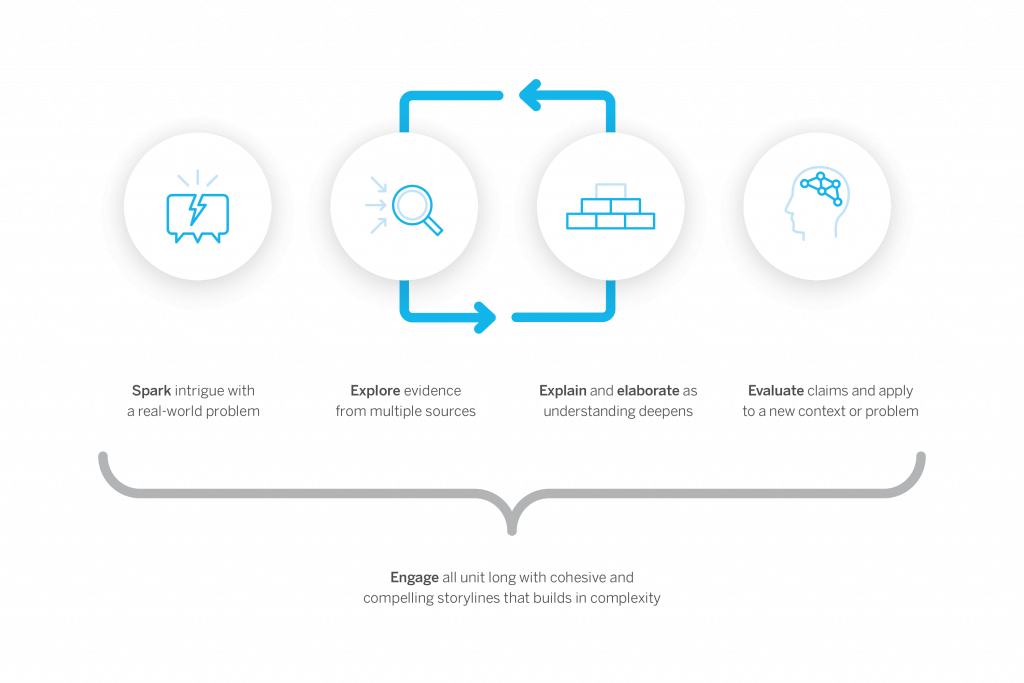
Multiple at-bats: Rather than introducing a concept on Monday, testing for mastery on Friday, and knowing students will forget everything by the next Tuesday, we set out to help students build meaningful and lasting knowledge that they can retain and transfer over the course of the entire unit. We accomplish this by giving students multiple opportunities (a.k.a. “at-bats”) to encounter, explore, and experience a concept. Said another way, Amplify Science California is actually made up of a series of multi-modal “mini-lessons”. This intentional cyclical and iterative design mirrors the 5Es, allows teachers the flexibility to speed up or skip ahead once students have demonstrated mastery, and empowers students to learn concepts more deeply than any other program. 

Graphic showing a research process with four steps: spark intrigue with a real-world problem, explore evidence, explain and elaborate, and evaluate claims, connected in a cycle with arrows.

Extension activities: When some students are ready to move on and others are not, our unit extension activities can be a big help. Found in the Lesson Brief section of both the digital and printed Teacher’s Guide, these activities ensure that advanced learners remain engaged and challenged while teachers help the rest of the class build the foundational knowledge they need to be successful later in the unit.

What’s important to remember is that more hands-on doesn’t necessarily mean better, at least according to the California NGSS. That’s because only two of the eight Science and Engineering Practices (SEPs) are directly related to hands-on learning. 

Just as scientists gather evidence from many types of sources, so do students in the Amplify Science California program. Like scientists, students gather evidence from physical models, digital models, texts, videos, photographs, maps, and data sets. By doing so, we provide students more opportunities than any other program to practice using all of the practices called out in the California NGSS Framework.

NGSS 8 Science Practices

  1. Asking questions
  2. Developing and using models
  3. Planning and carrying out investigations
  4. Analyzing and interpreting data
  5. Using mathematics and computational thinking
  6. Constructing explanations
  7. Engaging in arguments from evidence
  8. Obtaining, evaluating, and communicating information

While all of our units engage students in gathering evidence from a rich collection of sources, the reliance on different types of evidence (and evidence sources) varies according to unit. For instance, some units lend themselves to meaningful hands-on experiences, while in other units the phenomena students are investigating are too slow, too dangerous, or too big to be observed directly. In those units, students rely more heavily on other evidence sources such a physical models or simulations.

Unit types in grades K–5
In each K–5 grade, there is one unit that emphasizes investigation, one that emphasizes modeling, and one that emphasizes design. In addition, in grades 3–5, there is also one unit that emphasizes argumentation.

Unit types in grades 6–8
Each 6–8 grade features three types of units: LaunchCore, and Engineering Internships. Each year has one Launch unit, six Core units, and two Engineering Internships.

For teachers who wish to supplement the lessons with even more hands-on activities, optional “flextension” activities are included in many units.

As a blended curriculum, districts who adopt Amplify Science California are outfitted with a variety of print and digital resources as well as hands-on materials kits. To explore the specific components of the program, visit our What’s Included page.

As our customers will tell you, when you adopt Amplify Science California, you aren’t just buying a science curriculum, you’re joining a family. As such, along with materials, your adoption of Amplify Science California also includes care and support through a variety of staff and resources, including: customer support specialists, pedagogical support specialist, implementation specialists, professional learning specialists, educational partnership managers, and more.

Technical questions

To ensure that your hardware and network meet the minimum technical requirements for optimal performance and support of your digital curriculum products please see Amplify’s customer requirements page.

Absolutely! While 1:1 scenarios are great, they aren’t required. That’s because all Amplify Science California lessons were designed with device sharing in mind, and never assume that every student has a separate device. 

When the use of practice apps is called for in a lesson, you have several options:

  • If internet access is unavailable—“Preload” the digital tool on your device or devices for use offline.
  • If limited student devices are available—Have students do the activities in pairs or small groups.
  • If no student devices are available—Project the digital tool to the class and either “drive” the digital tool yourself or invite students to “drive” by using your device.

learning.amplify.com gives you access to the digital Teacher’s Guide and also gives your students (grades 68) access to the digital student experience.

apps.learning.amplify.com/elementary gives your students (grades 25) access to any practice apps referenced in the instruction. The teacher will either need to log in using their credentials, or have student accounts set up.

Tech headaches are never fun. However, implementing the following tips can help you keep the tech gremlins away.

  • Display the student URLs near the classroom display materials.
  • Before you start a unit, download all unit and lesson resources using the Offline Guide found in the Unit Guide of your digital Teacher’s Guide. In the event that connectivity issues strike, you will still be able to conduct your lessons without interruption.
  • Use Chrome or Safari if possible as these are our preferred browsers.
  • Disable pop-up blockers on all devices being used to support lessons.
  • Be prepared for some webpages to open in a new tab and for PDF files to download automatically.
  • Check and test your connections to any projection devices that you might be using throughout the lesson.
  • Display the student URLs near the classroom display materials.

Inspiring the next generation of St. Tammany scientists, engineers, and curious citizens

To view this protected page, enter the password below:


Amplify Reading for international partners

We’re thrilled you’re considering giving Amplify Reading a try! This site contains all the resources you’ll need to learn more about the program and to get started using it to support remote learning or classroom instruction. We’re confident you’re going to love how Amplify Reading provides targeted support for every student.

Colorful illustrated animals surround a futuristic portal with silhouettes, while books, dice, and a card deck are arranged in the foreground.

Getting started

What you need to know about Amplify Reading

Amplify Reading is a student-driven, digital literacy program that provides students with differentiated and adaptive practice in all key areas of literacy instruction. Teachers have access to rich data insights into student usage and progress they can use to inform remote instruction.

How does it work with other programs?

Amplify Reading is a great complement to any core or assessment program, especially Amplify Core Knowledge Language Arts (CKLA) and mCLASS.

When and how to use Amplify Reading

We recommend students use the program independently for 30-45 minutes a week. This implementation model has led to student growth, especially for dual language learners.

Students will need access to one of the following devices: Windows Devices with Windows 7+, Chromebooks with Chrome OS, and Mac devices with OS 10.11+ or iOS 11+.

How do I get started with Amplify Reading?

Good news! You and your students now have access to Amplify Reading. To get started, you’ll need to sign in with your Amplify credentials at mclass.amplify.com. Next, you’ll want to distribute Amplify Reading credentials to your students.

Where do I find my credentials?

You should have received an email from noreply@amplify.com with your new account information. If you do not see it in your inbox, please check your spam folder.

How to download and distribute student credentials:

How to support login at home:

You can direct parents to the following videos for an overview of the program and how to get started.

After students start playing, you can check in on their progress via your teacher dashboard. 

Amplify Reading Dashboard Tour

Printable extension activities

Consider sending the following activities home with your students as part of their weekly Amplify Reading routine. Each printable activity has instructions in both English and Spanish.
Packet 1
Activity Packet: Grade K | Grade 1 | Grade 2 | Grade 3 | Grade 4 | Grade 5
Answer Key: Grade 3 | Grade 4 | Grade 5

A young boy in a red shirt focuses on writing in a notebook with a pen at a desk, with a bright background.

Access support

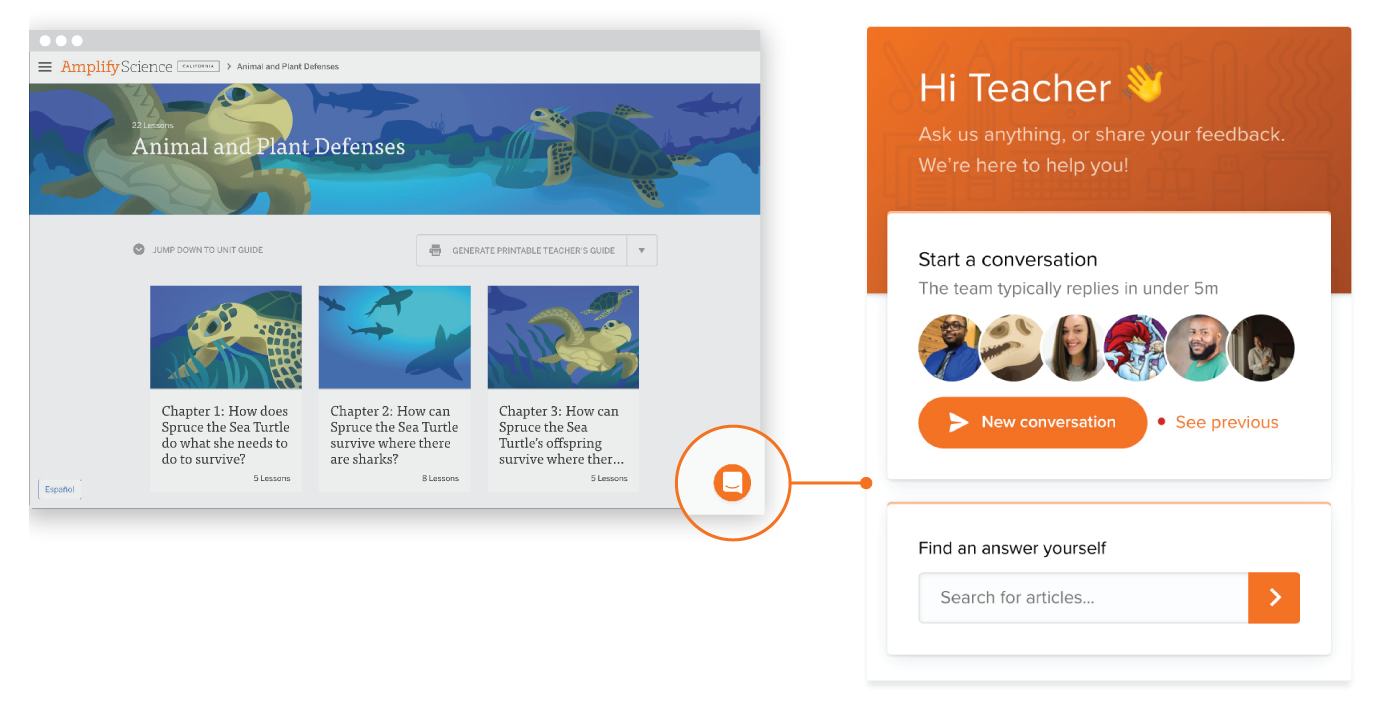
A science education website features animal and plant defense topics with turtle illustrations; a chat support window for teachers appears on the right side.

Intercom chat

Our Intercom feature gives you the ability to chat with customer support, technical support, and pedagogical support teams in real time directly from the digital platform. This ensures that issues that arise in the classroom can be addressed as quickly as possible. Support teams can be reached from 7 a.m. to 7 p.m. EDT, Monday through Friday.

Email

Our customer support, technical support, and pedagogical support teams can be reached by email at help@amplify.com from 7 a.m. to 7 p.m. EDT, Monday through Friday.

Open-plan office with multiple people working at desks with computers, plants by windows, and bright overhead lighting.

Overview

With Amplify Science, students don’t just passively learn about science concepts. Instead, they take on the role of scientists and engineers to actively investigate and figure out real-world phenomena. They do this through a blend of cohesive and compelling storylines, hands-on investigations, collaborative discussions, literacy-rich activities, and interactive digital tools.


Each unit of Amplify Science engages students in a relevant, real-world problem where they investigate scientific phenomena, engage in collaboration and discussion, and develop models or explanations in order to arrive at solutions.


Overview

A flexible, blended program

Amplify Science includes hands-on activities, print materials, and powerful digital tools to support online and offline teaching and learning. Highly adaptable and user-friendly, the program gives schools and individual teachers flexibility based on their technology resources and preferences.

Rooted in research

Amplify Science is rooted in the Lawrence Hall of Science’s Do, Talk, Read, Write, Visualize model of learning. This research-based approach presents students with multiple modalities through which to explore the NGSS curriculum.


EdReports

Amplify Science empowers students to think, read, and write like real scientists and engineers. Amplify Science for grades K–8 has been rated all-green by EdReports. Read the review on EdReports.

Explore the program

Thank you for your interest in Amplify Science. We have created demo accounts for you to explore our award-winning product. Below are instructions on how to log in and navigate.

Before logging in, watch this video to learn how to navigate the teacher and student digital experience.

  • How to log into the curriculum website:
    • Using a Google Chrome or Safari web browser, go to learning.amplify.com and select “Log in with Amplify”. (Note, if your school uses multiple Amplify products, you may also use my.amplify.com to locate all products in one place.)
  • Enter the following information:

Resources to support your review

Mature woman with gray hair, smiling, wearing a navy blazer and white top, against a plain white background.

Contact us

Support is always available. Our team is dedicated to helping you every step of the way.


Monica Vincent
Lead Account Executive
mvincent@amplify.com

Boost Reading pilot for mCLASS® and Acadience™ Reading schools

Hooray! We’re thrilled you’re considering giving Boost Reading a try! This site contains all the resources you’ll need to learn more about the program and get started with your pilot. We’re confident you’re going to love how Boost Reading puts your mCLASS and Acadience Reading data to work.

Colorful cartoon animals and objects surround a circular portal with a purple glowing ring, featuring silhouetted figures in its center.

Resources to support your pilot

What is Boost Reading?

Boost Reading is a digital reading program that complements ELA programs with adaptive and targeted practice in foundational reading skills. While it can be used on its own, Boost Reading also integrates with mCLASS and Acadience Reading, which means that you get extra benefits like automatic rostering and placement in the program based on a student’s mCLASS composite score. From that point forward, the program takes every student on a personalized journey that addresses gaps and bolsters foundational skills at a pace that supports their individual development.

A laptop and tablet displaying mClass with Boost Reading software, featuring fun, colorful graphics of a school and nature scene on the laptop, and a user interface for progress tracking on the tablet.
Digital progress report showing reading skills for Taylor in Grade 2. Trouble spots highlighted for decoding VC and CVC words. Progress bars and teacher options visible.

How do I get started with Boost Reading?

Good news! Boost Reading has already been enabled within your mCLASS and Acadience Reading accounts. To get started with the program, you’ve got only two steps left: adjusting your student login settings and setting up your student devices. The resource below will walk you through how to do both.

Note: Boost Reading works on most classroom devices, including Windows Devices with Windows 7+, Chromebooks with Chrome OS, and Mac devices with OS 10.11+ or iOS 11+.

What else can you tell me about Boost Reading?

As students engage in skill practice, their paths through the game world adapt to meet their unique learning needs. Boost Reading includes more than 40 standards-aligned games that build language, foundational skills, and comprehension skills, while also developing:

  • Phonological awareness
  • Phonics
  • Vocabulary
  • Text analysis
  • Comprehension
  • Microcomprehension (i.e., the smaller aspects of comprehension that make up the reader’s mental model of a text)

Some additional resources that you might find helpful:

Laptop displaying a screen with various colorful educational app icons arranged in a grid on a green chalkboard background.

For questions, please contact your Amplify representative

Robert “Bob” McCarty
Senior Account Executive
Email: rmccarty@amplify.com
Phone: (435) 655-1731

Boost Reading pilot for mCLASS®schools

Hooray! We’re thrilled you’re considering giving Boost Reading a try! This site contains all the resources you’ll need to learn more about the program and get started with your pilot. We’re confident you’re going to love how Boost Reading puts your mCLASS data to work.

Colorful cartoon animals and objects surround a circular portal with a purple glowing ring, featuring silhouetted figures in its center.

Resources to support your pilot

What is Boost Reading?

Boost Reading is a digital reading program that complements ELA programs with adaptive and targeted practice in foundational reading skills. While it can be used on its own, Boost Reading also integrates with mCLASS, which means that you get extra benefits like automatic rostering and placement in the program based on a student’s mCLASS composite score. From that point forward, the program takes every student on a personalized journey that addresses gaps and bolsters foundational skills at a pace that supports their individual development.

A laptop and tablet displaying mClass with Boost Reading software, featuring fun, colorful graphics of a school and nature scene on the laptop, and a user interface for progress tracking on the tablet.
Digital progress report showing reading skills for Taylor in Grade 2. Trouble spots highlighted for decoding VC and CVC words. Progress bars and teacher options visible.

How do I get started with Boost Reading?

Good news! Boost Reading has already been enabled within your mCLASS accounts. To get started with the program, you’ve got only two steps left: adjusting your student login settings and setting up your student devices. The resource below will walk you through how to do both.

Note: Boost Reading works on most classroom devices, including Windows Devices with Windows 7+, Chromebooks with Chrome OS, and Mac devices with OS 10.11+ or iOS 11+.

What else can you tell me about Boost Reading?

As students engage in skill practice, their paths through the game world adapt to meet their unique learning needs. Boost Reading includes more than 40 standards-aligned games that build language, foundational skills, and comprehension skills, while also developing:

  • Phonological awareness
  • Phonics
  • Vocabulary
  • Text analysis
  • Comprehension
  • Microcomprehension (i.e., the smaller aspects of comprehension that make up the reader’s mental model of a text)

Some additional resources that you might find helpful:

Una pantalla de computadora portátil que muestra una cuadrícula de íconos de juegos educativos, incluidos títulos como "Word Slide", "Field Observer", "Grumpy Goblins" y "Curioso Crossing".

For questions, please contact your Amplify representatives:

Dianne Lee
California Sales Director
dilee@amplify.com
(949) 246-2083

Christina Lugo
Pilot Coordinator – Statewide
clugo@amplify.com
(949) 838-7600

JoAnna Chocooj
Pilot Coordinator – Northern California
jchocooj@amplify.com
(707) 290-1728

Brooke Johnson
Pilot Coordinator – Southern California
bjohnson@amplify.com
(858) 349-2134

Boost Reading pilot for mCLASS® schools

Hooray! We’re thrilled you’re considering giving Boost Reading a try! This site contains all the resources you’ll need to learn more about the program and get started with your pilot. We’re confident you’re going to love how Boost Reading puts your mCLASS data to work.

Colorful cartoon animals and objects surround a circular portal with a purple glowing ring, featuring silhouetted figures in its center.

Resources to support your pilot

What is Boost Reading?

Boost Reading is a digital reading program that complements ELA programs with adaptive and targeted practice in foundational reading skills. While it can be used on its own,Boost Reading also integrates with mCLASS, which means that you get extra benefits like automatic rostering and placement in the program based on a student’s mCLASS composite score. From that point forward, the program takes every student on a personalized journey that addresses gaps and bolsters foundational skills at a pace that supports their individual development.

A laptop and tablet displaying mClass with Boost Reading software, featuring fun, colorful graphics of a school and nature scene on the laptop, and a user interface for progress tracking on the tablet.
Digital progress report showing reading skills for Taylor in Grade 2. Trouble spots highlighted for decoding VC and CVC words. Progress bars and teacher options visible.

How do I get started with Boost Reading?

Good news! Boost Reading has already been enabled within your mCLASS account. To get started with the program, you’ve got only two steps left: adjusting your student login settings and setting up your student devices. The resource below will walk you through how to do both.

Note: Boost Reading works on most classroom devices, including Windows Devices with Windows 7+, Chromebooks with Chrome OS, and Mac devices with OS 10.11+ or iOS 11+.

What else can you tell me about Boost Reading?

As students engage in skill practice, their paths through the game world adapt to meet their unique learning needs. Boost Reading includes more than 40 standards-aligned games that build language, foundational skills, and comprehension skills, while also developing:

  • Phonological awareness
  • Phonics
  • Vocabulary
  • Text analysis
  • Comprehension
  • Microcomprehension (i.e., the smaller aspects of comprehension that make up the reader’s mental model of a text)

Some additional resources that you might find helpful:

Laptop displaying a screen with various colorful educational app icons arranged in a grid on a green chalkboard background.

For questions, please contact your Amplify representatives

Monty Lammers
Senior Account Executive
Email: mlammers@amplify.com
Phone: (719) 964-4501

Boost Reading for mCLASS® partners

We’re thrilled you’re considering giving Boost Reading a try! This site contains all the resources you’ll need to learn more about the program and to get started using it to support remote learning or classroom instruction. We’re confident you’re going to love how Boost Reading puts your mCLASS data to work.

Colorful cartoon animals and objects surround a circular portal with a purple glowing ring, featuring silhouetted figures in its center.

Resources to support your use of the program

What is Boost Reading?

Boost Reading is a digital reading program that complements ELA programs with adaptive and targeted practice in foundational reading skills. While it can be used on its own, Boost Reading also integrates with mCLASS, which means that you get extra benefits like automatic rostering and placement in the program based on a student’s mCLASS composite score. From that point forward, the program takes every student on a personalized journey that addresses gaps and bolsters foundational skills at a pace that supports their individual development.

A laptop and tablet displaying mClass with Boost Reading software, featuring fun, colorful graphics of a school and nature scene on the laptop, and a user interface for progress tracking on the tablet.
Digital progress report showing reading skills for Taylor in Grade 2. Trouble spots highlighted for decoding VC and CVC words. Progress bars and teacher options visible.

How do I get started with Boost Reading?

Good news! Boost Reading has already been enabled within your mCLASS account. To get started with the program, you’ve got only two steps left: adjusting your student login settings and setting up your student devices. The resource below will walk you through how to do both.

After students start playing, you can check on their progress via your teacher dashboard.

How do I get families started with Boost Reading?

We will be releasing more resources to support at-home usage of Boost Reading, as well as communication between educators, students and parents/guardians. To start, you can direct parents to the following video and letters for an overview of the program and how to get started.

When and how to use Boost Reading
We recommend students use the program independently for 30-45 minutes a week. This implementation model has led to student growth, especially for dual language learners.

Students will need access to one of the following devices: Windows Devices with Windows 7+, Chromebooks with Chrome OS, and Mac devices with OS 10.11+ or iOS 11+.

Una pantalla de computadora portátil que muestra una cuadrícula de íconos de juegos educativos, incluidos títulos como "Word Slide", "Field Observer", "Grumpy Goblins" y "Curioso Crossing".

What else can you tell me about Boost Reading?

Review the resources below to dive deeper into what makes Boost Reading such a unique and powerful companion to mCLASS.

Join our Facebook group Science of Reading: The Community to discuss the latest in reading research and instructional practices.

Where to get support

Intercom chat

Our Intercom feature gives you the ability to chat with customer support, technical support, and pedagogical support teams in real time directly from the digital platform. This ensures that issues that arise in the classroom can be addressed as quickly as possible. Support teams can be reached from 7 a.m. to 10 p.m. EDT, Monday through Friday.

Interface of an educational website on animal and plant defenses, featuring chapter tiles with illustrations, and a chat support window labeled 'Hi Teacher' offering new conversation options.

Email

Our customer support, technical support, and pedagogical support teams can be reached by email at help@amplify.com from 7 a.m. to 10 p.m. EDT, Monday through Friday.

A brightly lit open office space with people working at desks, using computers. Plants are placed around the room, and a large screen is visible on the wall.

Welcome to Amplify Desmos Math Cherokee CSD!

To view this protected page, enter the password below: