Showing results for freddy mac

School year 2026–2027 requirements

iPad® 7+
Description: 1024 x 788 or higher, 32GB or higher
Operating system: iPadOS 18+
Browser: Safari 18+
PC
Description: 1.4 GHz dual core or greater, 1024 x 768 or higher, 4GB of RAM or higher
Operating system: Windows: 10+
Browser: Chrome (latest 2 versions)
Chromebook
Description: 1.4 GHz dual core or greater, 1024 x 768 or higher, 4GB of RAM or higher
Operating system: Chrome OS
Browser: Chrome (latest 2 versions)
Mac®
Description: 1.4 GHz dual core or greater, 1024 x 768 or higher, 4GB of RAM or higher
Operating system: macOS 15+
Browser: Safari 15+, Chrome (latest 2 versions)
iPadiPad Air® 4
iPad 8+
Chromebook™Acer Chromebook 314
Samsung Chromebook 4
Dell™ Chromebook 3120
HP Chromebook x360
MacMacBook Pro®
MacBook Air®
Interactive BoardA Google certified EDLA device, such as the SMART RX Series

The following devices are not supported due to known sub-optimal performance from older hardware or complicated settings:

MicrosoftSurface Tablet®

School year 2025–2026 requirements

iPad® 7+
Description: 1024 x 788 or higher, 32GB or higher
Operating system: iPadOS 17+
Browser: Safari 17+
PC
Description: 1.4 GHz dual core or greater, 1024 x 768 or higher, 4GB of RAM or higher
Operating system: Windows: 10+
Browser: Chrome (latest 2 versions)
Chromebook
Description: 1.4 GHz dual core or greater, 1024 x 768 or higher, 4GB of RAM or higher
Operating system: Chrome OS
Browser: Chrome (latest 2 versions)
Mac®
Description: 1.4 GHz dual core or greater, 1024 x 768 or higher, 4GB of RAM or higher
Operating system: macOS 14+
Browser: Safari 15+, Chrome (latest 2 versions)
iPadiPad Air® 4
iPad 8+
Chromebook™Acer Chromebook 314
Samsung Chromebook 4
Dell™ Chromebook 3120
HP Chromebook x360
MacMacBook Pro®
MacBook Air®
iMac®
Interactive BoardA Google certified EDLA device, such as the SMART RX Series

The following devices are not supported due to known sub-optimal performance from older hardware or complicated settings:

MicrosoftSurface Tablet®

We will provide active support of our applications on the following devices for the full school year listed below.

Device final support year

iPad 62024–2025
iPad Air 32025–2026
iPad 52022–2023
iPad Air 22021–2022
iPad 22018/2019
iPad 32018/2019
iPad 42018/2019

Network environment

MINIMUM

REQUIREMENTS
User devices:Connect to Amplify servers via ports 80 and 443.
Latency:No more than 165 ms during peak utilization.
Connection speed:2 mbps per device during peak usage (10 mbps recommended). Boost Reading requires a connection speed of 10 mbps per user for optimal performance.
URLs:For the complete list of URLs to allow, please visit https://amplify.com/allowlist/.

Requirements

mCLASS assessments are optimized for most touchscreen devices using Chrome™ or Safari® web browsers. The teacher-led, observational assessments are best conducted using touchscreen but will function using a laptop and mouse as well. Please check our device support lifecycles and purchase recommendations lists below prior to purchasing.

Boost Close Reading is currently not supported on iPads.

Due to its smaller screen, the iPad Mini is not supported.

Amplify curriculum applications require the ability to project from the teacher’s device.

Boost Reading Benchmark uses speech recognition software to analyze students’ oral reading. For the most accurate results, use a wired dual-ear headset with a boom microphone that extends in front of the student’s mouth. Avoid headsets with active noise cancellation (ANC) unless that feature can be disabled. Bluetooth headsets are currently incompatible with our speech recognition technology and should not be used.

iPhone 13 and later running iOS 17+ and Safari
Galaxy 11 and later running Android 15+ and Chrome

USBE Data Analysis for K-3 Reading Assessment Program

Introduction

mCLASS Assessment: Acadience™ Reading

How it works: Quickly identify the needs of each student and inform next steps with instant analysis, reports, and instructional planning tools included in the only licensed mobile version of the research-based Acadience Reading assessment.

  • Use short, 1-minute fluency measures for foundational reading skills.
  • Replace manual calculations with instant results and recommended activities.
  • Compare student progress with predictive, research-based benchmark goals.
  • Track progress and target instruction to individual student needs.
  • Support decision-making at every level using aggregate reports.
  • Translate class- and student-level reports into individualized instruction using the Now What?Tools.
  • Get a more complete view of early literacy skills with the new mCLASS:Early Literacy Measures (ELM).
Enrollment for mClass

Please review the Utah Enrollment for mCLASS document for important information about the rostering process for LEAs in Utah.

Benchmark Windows

The USBE has required that each Acadience Reading testing benchmark window occur within the below dates:

BOY — the first benchmark before October 14
MOY — the second benchmark between December 1 and February 5
EOY — the third benchmark between the middle of April and June 15

Benchmark windows for LEAs are set to the state benchmark window dates in mCLASS. Each LEA is to have 2-4 week benchmark period that is within the state benchmark window dates and LEA leaders are to share those dates with staff. The benchmark windows in mCLASS are set to the state benchmark window dates; not the LEA benchmark window dates and this can not be changed in mCLASS. If a student moves into your LEA and your benchmark window is closed, but the state benchmark period is still open, the student must be benchmarked. Should your LEA need an extension of a benchmark window beyond the close of the state benchmark windows, that must be approved by the USBE Assessment Department. Once the benchmark window closes, do not give the benchmark to a student, instead, educators can progress monitor the student on the measures they would have received a benchmark in order to get the students current instructional levels.

If you have questions regarding your current benchmark window dates, feel free to reach out to Amplify Customer Services at help@amplify.com.

Acadience Reading Benchmark Invalidations

Before you invalidate a benchmark probe, review the USBE’s list of acceptable reasons for invalidating on the Frequently Asked Questions: Acadience Reading Invalidations document. If a district/charter has a significant percentage of invalidations, contact and further action will be deployed. If you believe an invalidation is required, please contact your District/Charter Literacy Director. If they need support, they can contact Sara Wiebke, sara.wiebke@schools.utah.gov, to request an invalidation.

Progress Monitoring

The impact of progress monitoring

Progress monitoring is the most powerful tool we offer with regards to student achievement.

“Scores for Daze increase more slowly than they do for other Acadience Reading measures, so more frequent monitoring may not be as informative. For students who need to be monitored on Daze, we recommend monitoring once per month.”
Progress Monitoring with Acadience Reading 
© Acadience Learning
October 2012

The Acadience Reading authors recommend progress monitoring students in the Well Below Benchmark category once every 7-10 days (and once every 10-12 days for students in the Below Benchmark category).

Progress monitoring is the practice of testing students briefly but frequently on the skill areas in which they are receiving instruction, to ensure that they are making adequate progress. When students are identified as at risk for reading difficulties, they can receive progress monitoring testing more frequently to ensure that the instruction they are receiving is helping them make progress. (Acadience Learning/October 2012, Progress Monitoring Guide)

The purposes of progress monitoring are:

  • to provide ongoing feedback about the effectiveness of instruction,
  • to determine students’ progress toward important and meaningful goals, and
  • to make timely decisions about changes to instruction so that students will meet those goals.

How to progress monitor?

  • Select students for progress monitoring
  • Select Acadience Reading materials for progress monitoring
  • Set progress monitoring goals
  • Determine the frequency of progress monitoring
  • Conduct progress monitoring assessment
  • Access data through class and student reports
  • Evaluate progress and modify instruction.

The key to progress monitoring: Instruction should link to progress monitoring and progress monitoring should link to instruction. They should run parallel and merge as one to confirm student growth in reading.

Check your progress monitoring fidelity report in mCLASS to ensure you are on track with these students. For more information regarding progress monitoring guidelines, visit the official progress monitoring guidelines.

Support Team

Amplify Customer Services

(800) 823-1969
Monday to Friday, 5 a.m. to 5 p.m. MT
help@amplify.com

Educational Support Team

Pedagogical Questions
(800) 823-1969
Monday to Friday, 5 a.m. to 5 p.m. MT
edsupport@amplify.com

For more information, please contact:

Sarah McCarty
Associate Director, Educational Partnership
(812) 593-5776
smccarty@amplify.com

Donna Bright
Educational Partnership Manager
(303) 960-3772
dbright@amplify.com

Robert McCarty
Regional Director of Educational Partnership
(435) 655-1731
rmccarty@amplify.com

Cydnee Carter
Assessment Development Coordinator
(801) 538-7654
cydnee.carter@schools.utah.gov

Liz Williams
Elementary ELA Assessment Specialist
(801) 538-7542
Liz.williams@schools.utah.gov

Sara Wiebke
Literacy Coordinator
(801) 538-7935
sara.wiebke@schools.utah.gov

Krista Hotelling
K-3 Literacy Specialist
(801) 538-7794
krista.hotelling@schools.utah.gov

Christine Elegante
K-3 Literacy Specialist
(801) 538-7551
christine.elegante@schools.utah.gov

Julie Clark
K-3 Literacy Specialist
801-499-2515
julie.clark@schools.utah.gov

Melissa Preziosi
Assessment Data Specialist
(801) 538-7949
melissa.preziosi@schools.utah.gov

Resources

Helpful tips and guides
mCLASS:Acadience Reading tutorials
Technical resources

Amplify Enrollment This guide walks you through the necessary steps to complete enrollment using the manual enrollment tools on Amplify Home. It shows you how to manage staff, student, and class assignment information, and maintain the accuracy of your staff, student, and class assignments.

Devices & Requirements Ensure mCLASS is compatible with your devices and systems for optimal performance and support.

Remote Assessing

Videos:

Remote Assessment Guidance from the Acadience Team:  
mCLASS®: Acadience® Reading (formerly known as DIBELS Next)

Key Points:

Before you assess:

1. Determine how you will show student materials and score in mCLASS at the same time. 

  Description

Description

Recommended set up

  • One computer for video conferencing and sharing student materials.
  • One touchscreen device for scoring in mCLASS.
Modified set up
  • One computer.

Note: mCLASS app is optimized for touchscreen; scoring with a mouse may need more practice.

2. Familiarize yourself with the digital copies of student materials.

3. Schedule virtual meetings with students. To communicate with English-speaking caregivers, consider sending this email or video. To communicate with Spanish-speaking caregivers, consider sending this email or video.

4. Determine how you will handle scenarios where there’s a lag:

  Description
Record the meeting
  • Before the assessment begins, press the recording button on your video conferencing tool.
  • After the virtual meeting, listen to recording and rescore in mCLASS if needed.
  • Pick a decision rule for how to score ambiguous items and be consistent. For example, if you decide that you will give a student the benefit of the doubt and mark ambiguous similar sounding items correct when you can’t quite hear their answer, do this for all students you assess.
Use a phone
  • Before the assessment begins, call caregiver’s phone using your phone (type *67 before your number if you want your number to be hidden).
  • Ask the caregiver to press the speaker button. 
  • Mute yourself and your student on the virtual learning platform.

While you assess: 

1. Take the opportunity to connect individually with your students as they experience so much change. Don’t make the session solely about testing, and remind caregivers and students that the assessment is a way to see how you can best tailor instruction.

2. Make student materials visible to your student.

For Maze, choose the model that works best for you:

Enter results into the mCLASS web reports

  • Students complete online Maze during a video conference
    • Put a link to the student assessment site (mclass.amplify.com/student) and the student’s credentials into the chat box (learn how to generate student credentials in this video)
    • Ask your student to complete Maze.
  • Students complete online Maze outside of a video conference (caregiver support is needed with log-in)
    • To provide student credentials and instructions to English-speaking caregivers, consider sending this email and video. To provide student credentials and instructions to Spanish-speaking caregivers, consider sending this email and video.
  • Students complete Maze on paper
    • Locate the benchmark Maze Acadience Learning’s site.
    • Print a copy of the form you need (e.g. BOY) for each student in your class.
    • Send the form home in a sealed envelope with students, mail the form to caregivers, or have caregivers get forms via school-based pick-up. Provide instructions not to open the envelope until the student is ready to take the assessment.
    • Provide parents with instructions on how to proctor the assessment for their child. They need to:
      • Give the form to their child
      • Sit with their child and read the instructions and practice items
      • Tell their child to stop when 3 minutes has elapsed
      • Send screenshots of their child’s work via email or text, or return the completed form to the school in a sealed envelope provided by the school.
  Guidance
Acadience:Reading 

Use the share screen feature to display student materials on your screen.

Optional next step for measures that have student materials:

Zoom users: grant your student control of your screen so you can see their cursor as they read:

  • Click “Remote Control” and select your student’s name in the dropdown.
  • Ask your student to use their cursor to point to words as they read.

Note: For Mac OSX, you will need to give Zoom access in the Accessibility tab in the Privacy and Security preferences of your Mac. For more information on giving Zoom access in Security and Privacy, click here.

3. Score in mCLASS.

Student materials

  Benchmark Progress monitoring
Acadience Reading (formerly known as DIBELS Next) Available for free download on the Acadience Learning website

Oregon Enhanced ELA State Review for K–5

To view this protected page, enter the password below:


Utah – USBE Data Analysis for K-3 Reading Assessment Program – New

To view this protected page, enter the password below:


Welcome to Boost Reading: Remote Learning Edition!

Amplify is committed to helping school and district partners make instructional resources like Boost Reading: Remote Edition available to students who may be unable to attend school. 

This site contains all the resources you’ll need to get started using Boost Reading: Remote Edition with your students as soon as possible. We’re confident that as a community, we can continue to support learning to read remotely.

Are you an mCLASS® user? Click here to get started.

Colorful cartoon animals and objects surround a circular portal with a purple glowing ring, featuring silhouetted figures in its center.

Getting started

What you need to know about Boost Reading

Boost Reading is a student-driven, digital literacy program that provides students with differentiated and adaptive practice in all key areas of literacy instruction. Teachers have access to rich data insights into student usage and progress they can use to inform remote instruction.


How does it work with other programs?

Boost Reading is a great complement to any core or assessment program, especially Amplify Core Knowledge Language Arts (CKLA) and mCLASS.


When and how to use Boost Reading

We recommend students use the program independently for 30-45 minutes a week. This implementation model has led to student growth, especially for dual language learners.


Students will need access to one of the following devices: Windows Devices with Windows 7+, Chromebooks with Chrome OS, and Mac devices with OS 10.11+ or iOS 11+.


How do I get started with Amplify Reading?

Good news! Amplify Reading has already been enabled within your mCLASS and Acadience Reading accounts. To get started with the program, you’ve got only two steps left: creating your class code and setting up your devices.


  • [Video] How to access Amplify Reading from within mCLASS and Acadience Reading
  • [Video] How to enable class login
  • [Video] How to create shortcuts on devices
  • [PDF] Amplify Reading launch packet


Note: Amplify Reading works on most classroom devices, including Windows Devices with Windows 7+, Chromebooks with Chrome OS, and Mac devices with OS 10.11+ or iOS 11+.

What else can you tell me about Amplify Reading?

As students engage in skill practice, their paths through the game world adapt to meet their unique learning needs. Amplify Reading includes more than 40 standards-aligned games that build language, foundational skills, and comprehension skills, while also developing:

  • Phonological awareness
  • Phonics
  • Vocabulary
  • Text analysis
  • Comprehension
  • Microcomprehension (i.e., the smaller aspects of comprehension that make up the reader’s mental model of a text)


Some additional resources that you might find helpful:


How do I get started with Boost Reading?

Good news! You and your students now have access to Boost Reading. To get started, you’ll need to sign in with your Amplify credentials at mclass.devamplify.wpengine.com. Next, you’ll want to distribute Boost Reading credentials to your students.


Where do I find my credentials?

You should have received an email from noreply@devamplify.wpengine.com with your new account information. If you do not see it in your inbox, please check your spam folder.


How to download and distribute student credentials:


How to support login at home:

You can direct parents to the following videos for an overview of the program and how to get started.


After students start playing, you can check in on their progress via your teacher dashboard. 


Printable extension activities

Consider sending the following activities home with your students as part of their weekly Boost Reading routine. Each printable activity has instructions in both English and Spanish.

Packet 1

Access support

Intercom chat

Our Intercom feature gives you the ability to chat with customer support, technical support, and pedagogical support teams in real time directly from the digital platform. This ensures that issues that arise in the classroom can be addressed as quickly as possible. Support teams can be reached from 7 a.m. to 7 p.m. EDT, Monday through Friday.

Email

Our customer support, technical support, and pedagogical support teams can be reached by email at help@devamplify.wpengine.com from 7 a.m. to 7 p.m. EDT, Monday through Friday.

Oregon Math State Review for 9–12

To view this protected page, enter the password below:


Oregon Math State Review for 6–8

To view this protected page, enter the password below:


Oregon ELA State Review for 6–8

To view this protected page, enter the password below:


Oregon ELA Review for Elementary (K–5)

To view this protected page, enter the password below:


What’s new

The Tech User Manual has been updated for EOY.

About mCLASS in Louisiana

The Louisiana Department of Education is committed to providing literacy instruction for all by:

  • Aligning core curriculum, instruction, and assessments with the Science of Reading.
  • Providing appropriate literacy interventions to address difficulty with reading development.
  • Implementing practices based on the Science of Reading in every classroom, every day.
  • Offering aligned resources to parents, guardians, and family members.

Built on decades of research at the Center on Teaching and Learning at the University of Oregon (a national center for early childhood assessment and instruction), the mCLASS suite meets Louisiana’s early literacy goals for its students with a robust core curriculum and a suite of reporting, grouping, lesson, and caregiver support features.

DIBELS measures at each grade level 
Measure Grade K Grade 1 Grade 2 Grade 3
Letter naming fluency A large, light peach-colored checkmark on a transparent background. A large, light peach-colored checkmark on a transparent background.    
Phonemic segmentation fluency A large, light peach-colored checkmark on a transparent background. A large, light peach-colored checkmark on a transparent background.    
Nonsense word fluency A large, light peach-colored checkmark on a transparent background. A large, light peach-colored checkmark on a transparent background. A large, light peach-colored checkmark on a transparent background. A large, light peach-colored checkmark on a transparent background.
Word reading fluency A large, light peach-colored checkmark on a transparent background. A large, light peach-colored checkmark on a transparent background. A large, light peach-colored checkmark on a transparent background. A large, light peach-colored checkmark on a transparent background.
Oral reading fluency   A large, light peach-colored checkmark on a transparent background. A large, light peach-colored checkmark on a transparent background. A large, light peach-colored checkmark on a transparent background.
Maze (basic comprehension)     A large, light peach-colored checkmark on a transparent background. A large, light peach-colored checkmark on a transparent background.

Enrollment resources

EOY enrollment timeline: 

  • 3/3- 3/17: Admin Portal closed 
    • Students and staff are still able to log into mCLASS
    • Students are still able to assess Progress Monitoring
    • No EOY assessments taking place at this time 
    • Data Reporting (classroom and aggregate reports) is still available
  • 3/18: Admin Portal reopens 
  • 4/1: EOY begins

Student Transfers:

For instructions on transferring students into a district from a different district within the state, see the Transferring Students section of the Test Coordinator Manual: K–3 EOY.

To add students to your district who are transferring to your school from outside of LDOE, please follow the process in the Enrolling Students section of this article.

End of Year and G3 Summer window resources

  • Test Coordinator Manual (District and School Test Coordinators only): This manual provides instructions for administrative tasks for DTCs and STCs.
  • Test Administrator Manual for the Secure K–2 End of Year Literacy Assessment: This manual for Test Administrators provides instructions for administering the secure EOY assessment.
  • Test Administration Manual: Grade 3 End of Year Literacy Assessment:  This manual for Test Administrators provides instructions for administering EOY assessment to Grade 3 students.
  • Tech User Guide: This manual for District and School Technology Coordinators provides instructions for installing the safe browser (Windows/Mac) or kiosk mode applications (Chromebook) needed for secure EOY assessment.
  • Accessibility and Accommodations Manual: This manual includes information about the accessibility features offered for secure EOY assessment, as well as the standard DIBELS 8th Edition Accommodations.
  • For information about student demographics in the Admin Portal, see LDOE Admin Portal: Demographics.
  • New Troubleshooting for ChromeOS Kiosk Mode guide is available for Technology Coordinators supporting Test Administrators who encounter an error message when launching the Chrome kiosk mode applications.

How to: Install the Safe Exam Browser

This section provides instructions for installing the Safe Exam Browser (SEB), which is needed to assess K-2 students during EOY in Louisiana. Depending on your device type, download the SEB app from the Apple App Store or this site.

If you are using a Chromebook, you will use kiosk mode instead of the SEB. The Tech User Guide includes instructions for installing the applications needed to use kiosk mode, as well as instructions for installing the SEB and additional information to set up devices for secure End of Year (EOY) assessment.

Windows

Browser: Chrome (latest 2 versions)

iPad

  • Navigate to Safe Exam Browser in the App Store on your iPad.
  • Tap the Safe Exam Browser app icon to open the app page.
  • Tap Get to download and install the app.
  • For instructions on installing the SEB, see the Tech User Manual.

macOS

  • Download the DMG file.
  • Depending on your browser, a download page may open in a new tab, displaying the download progress. When the download is complete, close the tab. 
  • For instructions on installing the SEB, see the Tech User Manual.

Progress Monitoring

This guide provides instructions for administering progress monitoring (PM) assessments in Louisiana schools. 

Please note that the steps for accessing and administering PM assessments are different for schools with an mCLASS Intervention license than for schools that do not have an mCLASS Intervention license.

Amplify Tutoring: HDT driven by mCLASS data

An adult and child sit at a table, smiling and giving each other a high five. The child wears blue headphones and a laptop is on the table. The background is light blue.

Grounded in evidence-based practices and taught by caring, consistent tutors, our high-impact tutoring programs use high-quality instructional materials and data-driven mCLASS® products to empower students.

  • Data-driven, personalized instruction
  • Research-backed solutions tailored to support your MTSS framework
  • Customizable–before, during or after school year-long, semester-long and summer programming
  • Comprehensive program management and staffing support

Professional development

Amplify professional development (PD) provides learning experiences that intentionally develop the knowledge and skills you need for effective and self-sustaining implementation.

Go to the PD Library to access self-paced online courses, webinar recordings, videos, and more to help you learn how to administer and score the assessment and develop a deeper understanding of reporting and instruction.

If you are interested in purchasing additional PD for your school or district, please reach out to your account executive.

Additional mCLASS information

mCLASS gives you instant results and clear next steps for each student. Quick and actionable reports provide detailed insight into students’ reading development across foundational literacy skills for teachers, specialists, administrators, and caregivers.

View the EOY mCLASS Reporting Guide to learn more.

View the BOY/MOY mCLASS Reporting Guide to learn more.

Additional resources around mCLASS reporting can be found by navigating to the Programs & Apps section and then selecting PD Library

Graph showing emma ashley's progress in letter sounds from august to may, starting well below benchmark at 20, reaching 74 by december, and surpassing the benchmark with 90 in may.

To continue your own professional learning around the Science of Reading, join your colleagues who’ve subscribed to our podcasts and communities!

Science of Reading: The Podcast delivers the latest insights from researchers and practitioners in early reading. Further your professional development with each episode by subscribing and downloading now.

Science of Reading: The Community is built for those committed to fostering conversation around the Science of Reading and implementing best practices in the classroom (including the virtual classroom).

What does classroom instruction look like when it is based on Science of Reading practices? We’ve outlined a Science of Reading action plan to guide your evaluation in our new FREE ebook, Science of Reading: Making the shift.

A presentation slide titled "Science of Reading: Making the shift" with subtitle "Surveying classroom instruction" and colorful ribbon graphics.

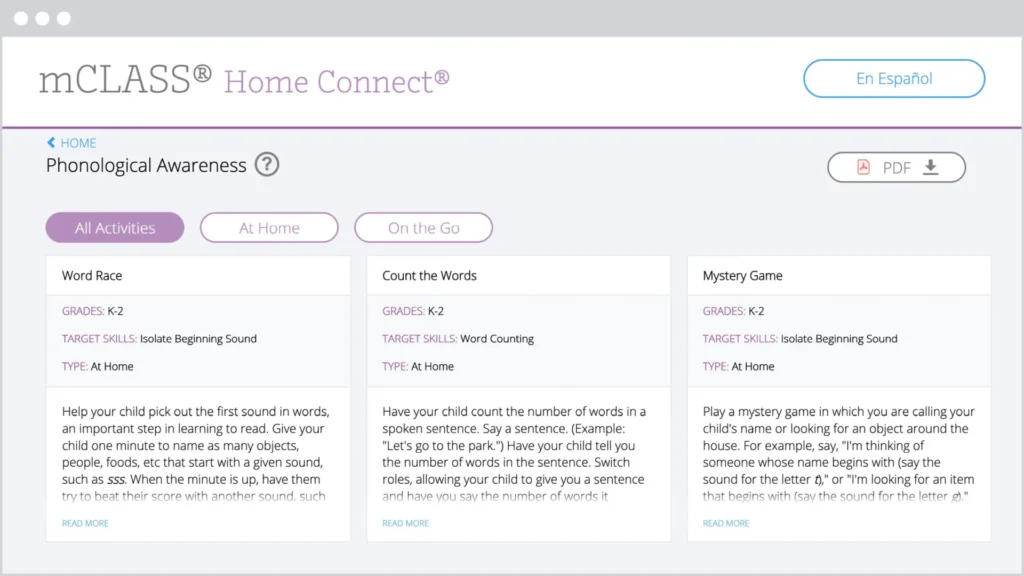
The mCLASS Home Connect website houses literacy resources for parents and caregivers, including at-home lessons organized by skill to help students at home during remote learning. Our mCLASS parent/caregiver letters in English and Spanish ensure that families know how to best support their students.

Screenshot of the mclass home connect website showing educational activities in three categories: word race, count the ways, and mystery game, with navigation options at the top.

mCLASS support

Our chat agents are standing by to assist you!
Simply log in at my.amplify.com/login/louisiana and select the orange button in the lower right corner to chat live with our support team.

Important note:
Our support hours are Monday through Friday, 7 a.m. to 6 p.m. CT.

Check out the DIBELS 8 LDOE Help Center for more help at any point during implementation.

A laptop screen displaying the AmplifyELA program with sections for different grade levels and core units, featuring colorful icons and a menu on the left side.

Additional Amplify products

Get in touch with us to learn more about bringing other high-quality Amplify programs to your school or district.

Amplify Reading for international partners

We’re thrilled you’re considering giving Amplify Reading a try! This site contains all the resources you’ll need to learn more about the program and to get started using it to support remote learning or classroom instruction. We’re confident you’re going to love how Amplify Reading provides targeted support for every student.

Colorful illustrated animals surround a futuristic portal with silhouettes, while books, dice, and a card deck are arranged in the foreground.

Getting started

What you need to know about Amplify Reading

Amplify Reading is a student-driven, digital literacy program that provides students with differentiated and adaptive practice in all key areas of literacy instruction. Teachers have access to rich data insights into student usage and progress they can use to inform remote instruction.

How does it work with other programs?

Amplify Reading is a great complement to any core or assessment program, especially Amplify Core Knowledge Language Arts (CKLA) and mCLASS.

When and how to use Amplify Reading

We recommend students use the program independently for 30-45 minutes a week. This implementation model has led to student growth, especially for dual language learners.

Students will need access to one of the following devices: Windows Devices with Windows 7+, Chromebooks with Chrome OS, and Mac devices with OS 10.11+ or iOS 11+.

How do I get started with Amplify Reading?

Good news! You and your students now have access to Amplify Reading. To get started, you’ll need to sign in with your Amplify credentials at mclass.amplify.com. Next, you’ll want to distribute Amplify Reading credentials to your students.

Where do I find my credentials?

You should have received an email from noreply@amplify.com with your new account information. If you do not see it in your inbox, please check your spam folder.

How to download and distribute student credentials:

How to support login at home:

You can direct parents to the following videos for an overview of the program and how to get started.

After students start playing, you can check in on their progress via your teacher dashboard. 

Amplify Reading Dashboard Tour

Printable extension activities

Consider sending the following activities home with your students as part of their weekly Amplify Reading routine. Each printable activity has instructions in both English and Spanish.
Packet 1
Activity Packet: Grade K | Grade 1 | Grade 2 | Grade 3 | Grade 4 | Grade 5
Answer Key: Grade 3 | Grade 4 | Grade 5

A young boy in a red shirt focuses on writing in a notebook with a pen at a desk, with a bright background.

Access support

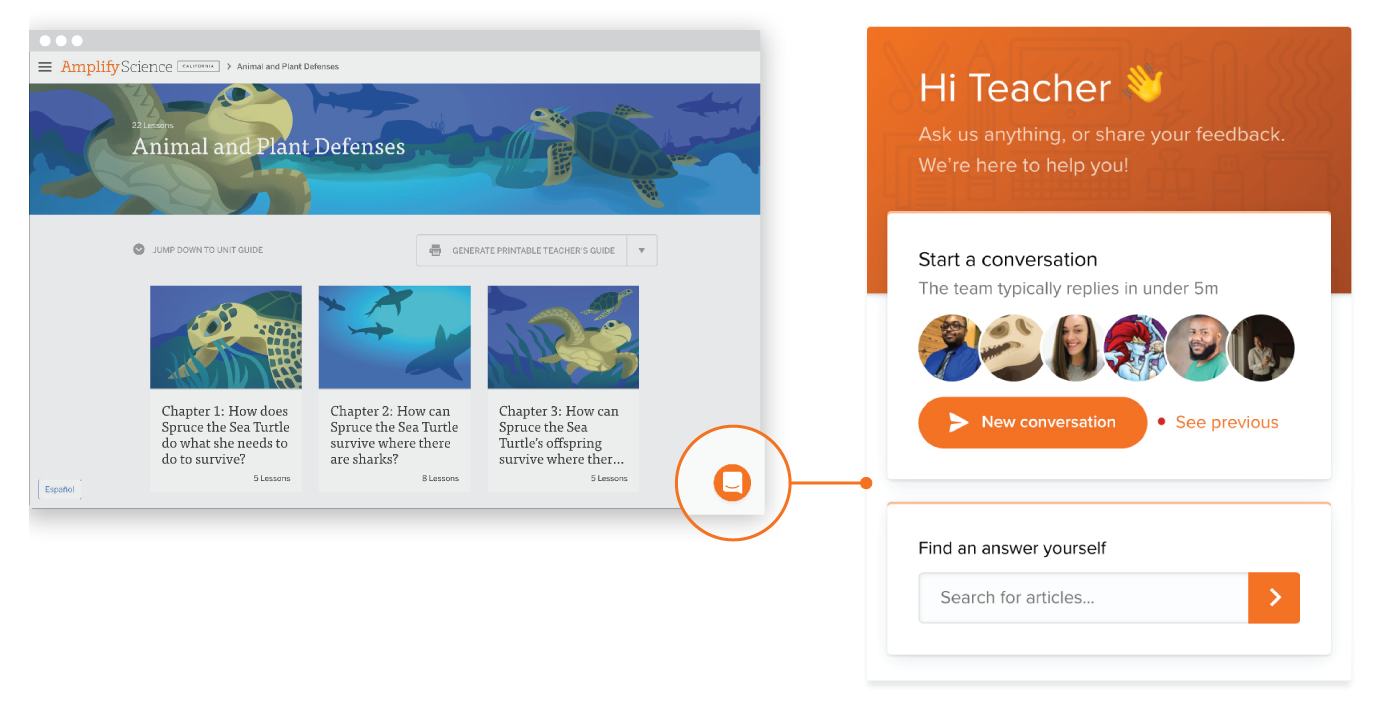
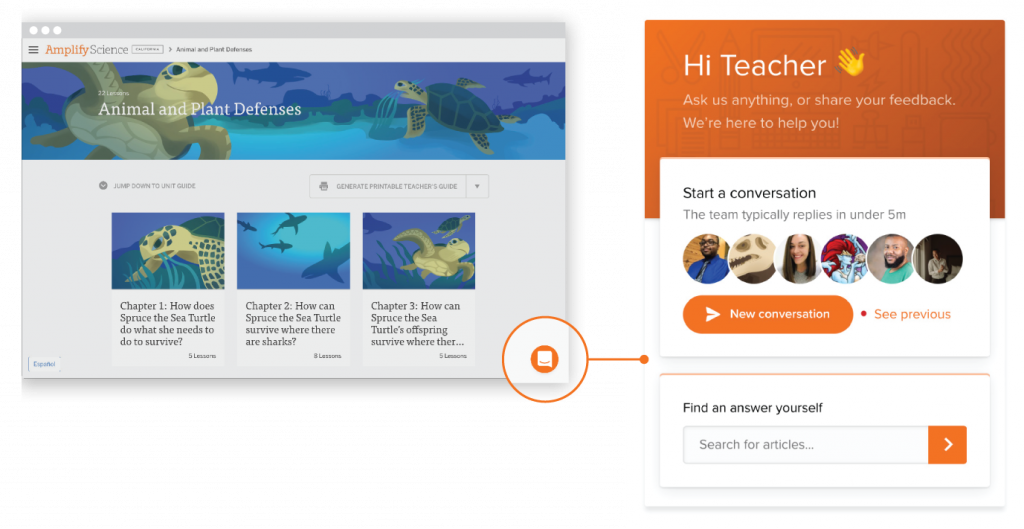
A science education website features animal and plant defense topics with turtle illustrations; a chat support window for teachers appears on the right side.

Intercom chat

Our Intercom feature gives you the ability to chat with customer support, technical support, and pedagogical support teams in real time directly from the digital platform. This ensures that issues that arise in the classroom can be addressed as quickly as possible. Support teams can be reached from 7 a.m. to 7 p.m. EDT, Monday through Friday.

Email

Our customer support, technical support, and pedagogical support teams can be reached by email at help@amplify.com from 7 a.m. to 7 p.m. EDT, Monday through Friday.

Open-plan office with multiple people working at desks with computers, plants by windows, and bright overhead lighting.

Boost Reading pilot for mCLASS® and Acadience™ Reading schools

Hooray! We’re thrilled you’re considering giving Boost Reading a try! This site contains all the resources you’ll need to learn more about the program and get started with your pilot. We’re confident you’re going to love how Boost Reading puts your mCLASS and Acadience Reading data to work.

Colorful cartoon animals and objects surround a circular portal with a purple glowing ring, featuring silhouetted figures in its center.

Resources to support your pilot

What is Boost Reading?

Boost Reading is a digital reading program that complements ELA programs with adaptive and targeted practice in foundational reading skills. While it can be used on its own, Boost Reading also integrates with mCLASS and Acadience Reading, which means that you get extra benefits like automatic rostering and placement in the program based on a student’s mCLASS composite score. From that point forward, the program takes every student on a personalized journey that addresses gaps and bolsters foundational skills at a pace that supports their individual development.

A laptop and tablet displaying mClass with Boost Reading software, featuring fun, colorful graphics of a school and nature scene on the laptop, and a user interface for progress tracking on the tablet.
Digital progress report showing reading skills for Taylor in Grade 2. Trouble spots highlighted for decoding VC and CVC words. Progress bars and teacher options visible.

How do I get started with Boost Reading?

Good news! Boost Reading has already been enabled within your mCLASS and Acadience Reading accounts. To get started with the program, you’ve got only two steps left: adjusting your student login settings and setting up your student devices. The resource below will walk you through how to do both.

Note: Boost Reading works on most classroom devices, including Windows Devices with Windows 7+, Chromebooks with Chrome OS, and Mac devices with OS 10.11+ or iOS 11+.

What else can you tell me about Boost Reading?

As students engage in skill practice, their paths through the game world adapt to meet their unique learning needs. Boost Reading includes more than 40 standards-aligned games that build language, foundational skills, and comprehension skills, while also developing:

  • Phonological awareness
  • Phonics
  • Vocabulary
  • Text analysis
  • Comprehension
  • Microcomprehension (i.e., the smaller aspects of comprehension that make up the reader’s mental model of a text)

Some additional resources that you might find helpful:

Laptop displaying a screen with various colorful educational app icons arranged in a grid on a green chalkboard background.

For questions, please contact your Amplify representative

Robert “Bob” McCarty
Senior Account Executive
Email: rmccarty@amplify.com
Phone: (435) 655-1731

Boost Reading pilot for mCLASS®schools

Hooray! We’re thrilled you’re considering giving Boost Reading a try! This site contains all the resources you’ll need to learn more about the program and get started with your pilot. We’re confident you’re going to love how Boost Reading puts your mCLASS data to work.

Colorful cartoon animals and objects surround a circular portal with a purple glowing ring, featuring silhouetted figures in its center.

Resources to support your pilot

What is Boost Reading?

Boost Reading is a digital reading program that complements ELA programs with adaptive and targeted practice in foundational reading skills. While it can be used on its own, Boost Reading also integrates with mCLASS, which means that you get extra benefits like automatic rostering and placement in the program based on a student’s mCLASS composite score. From that point forward, the program takes every student on a personalized journey that addresses gaps and bolsters foundational skills at a pace that supports their individual development.

A laptop and tablet displaying mClass with Boost Reading software, featuring fun, colorful graphics of a school and nature scene on the laptop, and a user interface for progress tracking on the tablet.
Digital progress report showing reading skills for Taylor in Grade 2. Trouble spots highlighted for decoding VC and CVC words. Progress bars and teacher options visible.

How do I get started with Boost Reading?

Good news! Boost Reading has already been enabled within your mCLASS accounts. To get started with the program, you’ve got only two steps left: adjusting your student login settings and setting up your student devices. The resource below will walk you through how to do both.

Note: Boost Reading works on most classroom devices, including Windows Devices with Windows 7+, Chromebooks with Chrome OS, and Mac devices with OS 10.11+ or iOS 11+.

What else can you tell me about Boost Reading?

As students engage in skill practice, their paths through the game world adapt to meet their unique learning needs. Boost Reading includes more than 40 standards-aligned games that build language, foundational skills, and comprehension skills, while also developing:

  • Phonological awareness
  • Phonics
  • Vocabulary
  • Text analysis
  • Comprehension
  • Microcomprehension (i.e., the smaller aspects of comprehension that make up the reader’s mental model of a text)

Some additional resources that you might find helpful:

Una pantalla de computadora portátil que muestra una cuadrícula de íconos de juegos educativos, incluidos títulos como "Word Slide", "Field Observer", "Grumpy Goblins" y "Curioso Crossing".

For questions, please contact your Amplify representatives:

Dianne Lee
California Sales Director
dilee@amplify.com
(949) 246-2083

Christina Lugo
Pilot Coordinator – Statewide
clugo@amplify.com
(949) 838-7600

JoAnna Chocooj
Pilot Coordinator – Northern California
jchocooj@amplify.com
(707) 290-1728

Brooke Johnson
Pilot Coordinator – Southern California
bjohnson@amplify.com
(858) 349-2134

Boost Reading pilot for mCLASS® schools

Hooray! We’re thrilled you’re considering giving Boost Reading a try! This site contains all the resources you’ll need to learn more about the program and get started with your pilot. We’re confident you’re going to love how Boost Reading puts your mCLASS data to work.

Colorful cartoon animals and objects surround a circular portal with a purple glowing ring, featuring silhouetted figures in its center.

Resources to support your pilot

What is Boost Reading?

Boost Reading is a digital reading program that complements ELA programs with adaptive and targeted practice in foundational reading skills. While it can be used on its own,Boost Reading also integrates with mCLASS, which means that you get extra benefits like automatic rostering and placement in the program based on a student’s mCLASS composite score. From that point forward, the program takes every student on a personalized journey that addresses gaps and bolsters foundational skills at a pace that supports their individual development.

A laptop and tablet displaying mClass with Boost Reading software, featuring fun, colorful graphics of a school and nature scene on the laptop, and a user interface for progress tracking on the tablet.
Digital progress report showing reading skills for Taylor in Grade 2. Trouble spots highlighted for decoding VC and CVC words. Progress bars and teacher options visible.

How do I get started with Boost Reading?

Good news! Boost Reading has already been enabled within your mCLASS account. To get started with the program, you’ve got only two steps left: adjusting your student login settings and setting up your student devices. The resource below will walk you through how to do both.

Note: Boost Reading works on most classroom devices, including Windows Devices with Windows 7+, Chromebooks with Chrome OS, and Mac devices with OS 10.11+ or iOS 11+.

What else can you tell me about Boost Reading?

As students engage in skill practice, their paths through the game world adapt to meet their unique learning needs. Boost Reading includes more than 40 standards-aligned games that build language, foundational skills, and comprehension skills, while also developing:

  • Phonological awareness
  • Phonics
  • Vocabulary
  • Text analysis
  • Comprehension
  • Microcomprehension (i.e., the smaller aspects of comprehension that make up the reader’s mental model of a text)

Some additional resources that you might find helpful:

Laptop displaying a screen with various colorful educational app icons arranged in a grid on a green chalkboard background.

For questions, please contact your Amplify representatives

Monty Lammers
Senior Account Executive
Email: mlammers@amplify.com
Phone: (719) 964-4501

Boost Reading for mCLASS® partners

We’re thrilled you’re considering giving Boost Reading a try! This site contains all the resources you’ll need to learn more about the program and to get started using it to support remote learning or classroom instruction. We’re confident you’re going to love how Boost Reading puts your mCLASS data to work.

Colorful cartoon animals and objects surround a circular portal with a purple glowing ring, featuring silhouetted figures in its center.

Resources to support your use of the program

What is Boost Reading?

Boost Reading is a digital reading program that complements ELA programs with adaptive and targeted practice in foundational reading skills. While it can be used on its own, Boost Reading also integrates with mCLASS, which means that you get extra benefits like automatic rostering and placement in the program based on a student’s mCLASS composite score. From that point forward, the program takes every student on a personalized journey that addresses gaps and bolsters foundational skills at a pace that supports their individual development.

A laptop and tablet displaying mClass with Boost Reading software, featuring fun, colorful graphics of a school and nature scene on the laptop, and a user interface for progress tracking on the tablet.
Digital progress report showing reading skills for Taylor in Grade 2. Trouble spots highlighted for decoding VC and CVC words. Progress bars and teacher options visible.

How do I get started with Boost Reading?

Good news! Boost Reading has already been enabled within your mCLASS account. To get started with the program, you’ve got only two steps left: adjusting your student login settings and setting up your student devices. The resource below will walk you through how to do both.

After students start playing, you can check on their progress via your teacher dashboard.

How do I get families started with Boost Reading?

We will be releasing more resources to support at-home usage of Boost Reading, as well as communication between educators, students and parents/guardians. To start, you can direct parents to the following video and letters for an overview of the program and how to get started.

When and how to use Boost Reading
We recommend students use the program independently for 30-45 minutes a week. This implementation model has led to student growth, especially for dual language learners.

Students will need access to one of the following devices: Windows Devices with Windows 7+, Chromebooks with Chrome OS, and Mac devices with OS 10.11+ or iOS 11+.

Una pantalla de computadora portátil que muestra una cuadrícula de íconos de juegos educativos, incluidos títulos como "Word Slide", "Field Observer", "Grumpy Goblins" y "Curioso Crossing".

What else can you tell me about Boost Reading?

Review the resources below to dive deeper into what makes Boost Reading such a unique and powerful companion to mCLASS.

Join our Facebook group Science of Reading: The Community to discuss the latest in reading research and instructional practices.

Where to get support

Intercom chat

Our Intercom feature gives you the ability to chat with customer support, technical support, and pedagogical support teams in real time directly from the digital platform. This ensures that issues that arise in the classroom can be addressed as quickly as possible. Support teams can be reached from 7 a.m. to 10 p.m. EDT, Monday through Friday.

Interface of an educational website on animal and plant defenses, featuring chapter tiles with illustrations, and a chat support window labeled 'Hi Teacher' offering new conversation options.

Email

Our customer support, technical support, and pedagogical support teams can be reached by email at help@amplify.com from 7 a.m. to 10 p.m. EDT, Monday through Friday.

A brightly lit open office space with people working at desks, using computers. Plants are placed around the room, and a large screen is visible on the wall.

Episode 17: Etymology of the English language with Freddy Hiebert

Dr. Elfrieda “Freddy” Hiebert, author and founder of the Text Project, shares insights from her research on vocabulary, the etymology of the English language, and the importance of teaching morphology to enable kids to make connections.

What to expect

Researchers and practitioners have defined effective pathways to reading success and still, combining the science of early reading with the art of implementing change remains a challenge. Chandler Unified School District is partnering with current thought leaders, academics, and Amplify facilitators to immerse participants in reading research and improvement science, supporting your district in developing practical, actionable solutions focused on helping young learners become successful readers. Your school team will have the opportunity to work hands-on with our experts and leave the experience with two specific, targeted commitments to a behavior or system change (a “change idea”), which they can implement to improve reading performance.

Speaker bios

Dr. Elfrieda “Freddy” Hiebert (Ph.D., University of Wisconsin, 1979) is the President and CEO of TextProject, a non-profit aimed at providing open-access resources for instruction of beginning and struggling readers. Freddy has had a long career as a literacy educator and is also a research associate at the University of California. Her research, which addresses how fluency, vocabulary, and knowledge can be fostered through appropriate texts, has been published in numerous scholarly journals and books. Hiebert’s contributions to research and practice have been recognized through awards such as the Oscar Causey Award for Outstanding Contributions to Reading Research (Literacy Research Association, 2015), Research to Practice award (American Educational Research Association, 2013), William S. Gray Citation of Merit Award for Outstanding Contributions to Reading Research (International Reading Association, 2008), and membership in the Reading Hall of Fame (2008).

Dillon Hauptfuhrer is the Associate Director of Curriculum Development for the Teach Like a Champion Team. Dillon brings eight years of leading and teaching to her role creating curriculum for the Teach Like A Champion team. Prior to joining the team, Dillon served as a Principal in Residence and Academic Dean at Achievement First in Brooklyn and she worked with YES Prep in Houston for six years as both a teacher, Content Specialist, and Dean of Students. Dillon is a graduate of the University of Virginia and received her M. Ed from Harvard’s Graduate School of Education.

Jen Rugani is the Associate Director of Curriculum and School Support for the Teach Like a Champion Team. As a former principal of Uncommon Schools’ Leadership Prep Canarsie Elementary Academy, member of the inaugural cohort of Teach Like a Champion Fellows, and elementary school teacher, Jen Rugani brings 9 years of leading and teaching to her work creating curriculum and supporting schools. Jen is a graduate of Harvard University and has a Master’s degree from Relay Graduate School of Education, where she also completed the National Principal’s Academy Fellowship.

Pre-reads

Reading Reconsidered
Hard Words

Agenda

Presentations

Thank you for attending Amplify’s Impact Forum in Brooklyn!

We look forward to working with all the attending districts as you bring your change ideas back to your district.

if you have any questions, please email us at cfer@amplify.com.

Tools for Literacy Classrooms

Doug Lemov and Colleen Driggs

View videos

View presentation

Using Improvement Science

Sharon Greenberg

View presentation

Early Education and the Brain: Making Novel Connections

Bruce McCandliss

View presentation

The Case of Curriculum

Robert Pondiscio

View presentation

Getting Clear About the Goal: What Is Third-Grade Reading?

Elfrieda “Freddy” Hiebert

View presentation

The Now, Days 1 and 2

Rebecca Goldberg, Alison Fuller, and Macharva Housley (Bellwether Education Partners)

View presentation

Program

Each grade includes six core text-based units, two to three immersive Learning Experiences called Quests, and a dedicated Story Writing unit, all of which account for 180 days of instruction.

Carefully selected for their adherence to the CCSS ELA/Literacy, the texts in the Amplify ELA curriculum balance literary and informational text, and include a rich representation of genres: novels, plays, poetry, memoirs, and other full-length texts. This English Language Arts resource will allow students to grow and develop their literacy skills.

Quests are not graded. These week-long narrative lesson plans build on the literacy skills students have been developing in traditional lessons. They also shake up classroom routines and allow students to take the lead—driving engagement and enabling students to explore new ideas.

In Amplify ELA, text selections have been carefully curated to engage students in the study of complex texts at each grade level. Lexile levels are included for each core text. The Amplify ELA program has sequenced core texts, creating a “staircase” of steadily increasing complexity as measured by quantitative measures, qualitative measures, and task consideration.

Amplify’s core middle school ELA lessons expose students to a diverse array of text types, genres, authors, and time periods. By representing a wide range of student interests and perspectives, these texts develop student curiosity while also building skills and content knowledge.

No. Access to all 650+ full length titles in the Amplify Library is included in the student license. Students can download the texts from the library onto their device and access them offline, as well.

Technology

Amplify ELA 2nd edition is a blended instructional model and can be used in classrooms with limited access to devices. Teachers can make strategic choices about when their students use devices without compromising learning, while still providing 100% standards coverage.

Our curriculum offers a hybrid approach to instruction. We have developed a robust digital platform and tools for students to interact with text in unique ways and for teachers to track and support student progress. When students are using our rich print materials, teachers can share those digital experiences through classroom projection.

Amplify ELA is a web-based, device-agnostic program, meaning that it works across any device. PCs, Chromebooks, Macs, and iPads are all compliant.

Season 6, Episode 1

The other side of Scarborough’s Rope, with Margaret Goldberg

In our kick-off episode for season six, host Susan Lambert is joined by podcast alum Margaret Goldberg, the co-founder of the Right to Read Project.  They discuss the new, animated Science of Reading series Brain Builders, and how this free tool can be shared directly with students and their caregivers. Importantly, Margaret also elevates the need to focus on the comprehension strand of the Science of Reading.

Meet Our Guest(s):

Una mujer con cabello rubio de longitud media, vestida con una blusa azul, sonríe levemente en un marco circular con una bombilla y una flecha superpuestas inspiradas en la cuerda de Scarborough.

Margaret Goldberg

Margaret Goldberg is a literacy coach in a large urban district in California. She’s held a variety of roles including district early literacy lead, site-based literacy coach, reading interventionist, and classroom teacher. In every role, she’s worked to help schools and districts align instruction with reading research. She is the co-founder of the Right to Read Project and her writing is published on The Right to Read Project blog and Reading Rockets.

Meet our host, Susan Lambert

Susan Lambert is the Chief Academic Officer of Elementary Humanities at Amplify, and the host of Science of Reading: The Podcast. Her career has been focused on creating high-quality learning environments using evidence-based practices. Susan is a mom of four, a grandma of four, a world traveler, and a collector of stories.

As the host of Science of Reading: The Podcast, Susan explores the increasing body of scientific research around how reading is best taught. As a former classroom teacher, administrator, and curriculum developer, Susan is dedicated to turning theory into best practices that educators can put right to use in the classroom, and to showcasing national models of reading instruction excellence.

Susan-Lambert_Headshot

Quotes

“When was the last time in education anybody heard of de-implementation? All we do is pile one thing on top of another, on top of another…then we wonder why it didn't work.”

—Margaret Goldberg

“You have to distinguish between an initiative, something that is new, and culture, something that's part of what we do every day and that is embedded. That is more important.”

—Margaret Goldberg

“The problem is this. If you only look at the results, then you don't know what caused it. Somebody has to look at underlying causes.”

—Margaret Goldberg

“It's really important for administrators to say, 'Hey, I can deal with some chaos. I can deal with students making mistakes.' That's real learning.”

—Margaret Goldberg